The Offsets feature is used to manually apply an original invoice against a reversal invoice. Doing so causes the invoices to be closed, and thus will not display as an open item on your account.
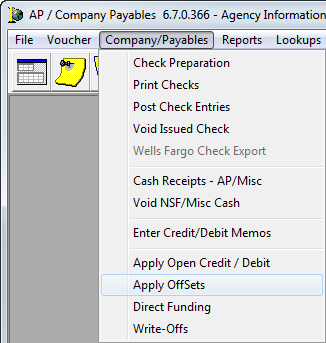
- On the Company/Payables menu, click Apply OffSets.
- In the Select Batch dialog box, use the following buttons to manage batches.
- OK – Select or edit an existing batch
- Cancel – Close the Select Batch window
- New – Enter a new voucher batch
- Print/Post – Print or post the batch
- Reassign – Assign the batch to another person
- Click New to create a new offset batch.
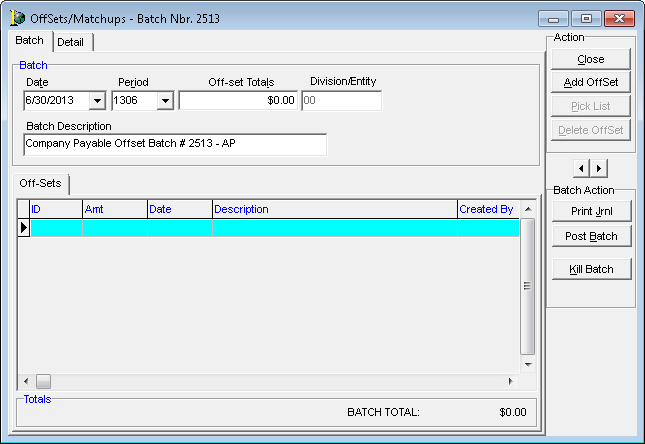
- In Offsets/Matchups, use the features and fields described in the following table to manage the batch.
| Field/Feature | Function |
|---|---|
| Date | Populates with the current date and may be modified |
| Period | Populates with the current accounting period and may be modified |
| Off-set Total | The total of the batch |
| Division/Entity | Entity affected by the batch |
| Batch | System generated description of the batch; may be modified |
| Close | Save and close the batch for use at a later time |
| Add Offset | Add an offset to the batch |
| Delete Offset | Delete the highlight offset |
| Database navigation arrows | Move between previous and next payment entries within the batch. |
| Print Journal | Print the memo report journal |
| Post Batch | Post the batch |
| Kill Batch | Cancel the batch |
- Click Add Offset.
- Click the magnifying glass button to select a client ID.
- Click Select Invoice.
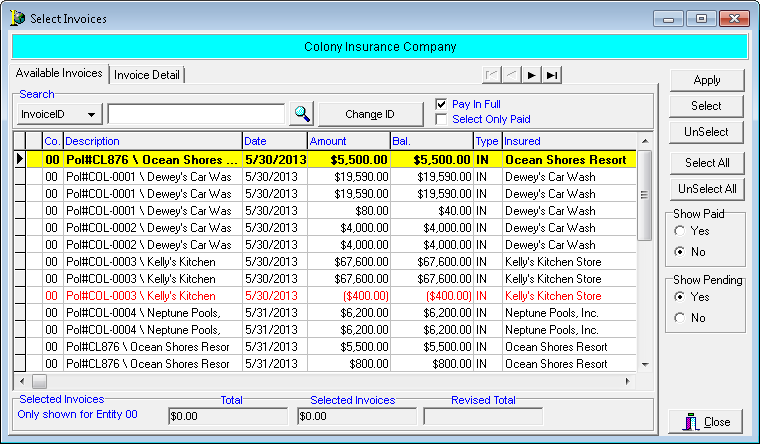
- Use the features and fields described in the table below to manage invoices.
| Field/Feature | Function |
|---|---|
| Available Invoices tab | Displays invoices available for selection and addition to this payment batch. |
| Database navigation arrows | Scrolls between previous and next payment entries within this batch. |
| Search field |
Used to search for a particular invoice. Choose search parameters of:
|
| Change ID | Used to change the ID to that of another company. |
| Pay In Full | If not selected the amount field on the Applied Invoices tab displays zero, alerting you to enter the amount to be applied to the invoice. If selected, the amount field on the Applied Invoices tab displays the open balance of the invoice and applies to all selected invoices. |
| Select Only Paid | Not currently used. |
| Apply | Causes the selected invoices to be displayed on the Applied Invoices tab for application. |
| Select | Used to individually select invoices for application. |
| Unselect | Used to clear the selection of the selected invoice. |
| Show Paid | If Yes, displays all paid and unpaid invoices in the grid for selection. If No, only unpaid invoices are displayed for selection. |
| Show Pending | If Yes, displays all invoices for selection, including those that may have already been selected in another batch. If No, only those invoices that are unpaid (or not selected in another batch) are displayed for selection. |
| Selected Invoices fields | Fields display the payment total, total of invoices selected and revised total (difference between the payment total and total of invoices selected). |
| Invoice Detail tab | Displays information pertaining to the history of this invoice and policy in both the AIM and AIM Accounting systems. |
- Select all offsetting invoices, and then click Apply.
- Click Add Off-Set to add additional invoices to offset, if applicable.
- Click Print Jrnl.
- In the Offset Batch dialog box, use the buttons described below to manage viewing and printing of the batch.
- View – View the journal on screen
- Print – Print the journal
- Setup – Change the printer set up
- Exit – Exit Offset Batch dialog box
- Cancel – Cancel printing of the journal
- Click Post Batch.
 See Also