The Bank/Check Register report is used to view and print check information.
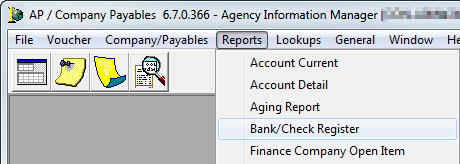
- On the Reports menu, click Bank/Check Register.
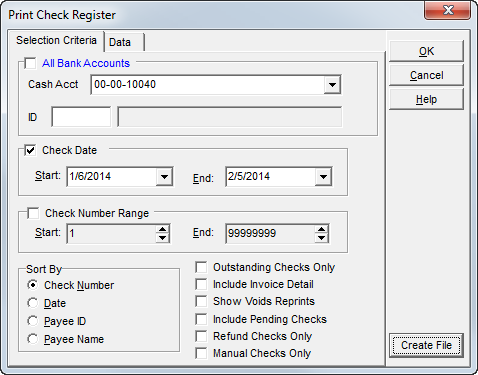
The fields and features of the Print Check Register dialog box, are defined in the table below.
| Field/Feature | Function |
|---|---|
| All Bank Accounts | View information for all operating and trust accounts |
| Cash Account | Select the bank account by number |
| ID | View information for a particular company by entering the ID number |
| Check Date | Search by the date on which the check was prepared |
| Start/End Date | Type the desired ending date or use the calendar |
| Check Number Range | Search by check number |
| Start/End Number Range | Either type the number range or use the arrows to increase or decrease the value |
| Sort By |
Several sorting options exists for this feature:
|
| Outstanding Checks Only | View only checks that are still outstanding |
| Include Invoice Detail | View the invoice detail that corresponds with each check |
| Show Voids/Reprints | View voided and reprinted checks |
| Include Pending Checks | View checks that have not been printed or posted |
| Refund Checks Only | View only checks that have been refunded to an agent or insured |
| Manual Checks Only | View only checks that have been manually prepared |
| OK | View or print the report |
| Cancel | Terminate the report |
| Help | Future feature |
| Data tab | With report headers omitted, this tab allows easier export; right-click in the grid, and then click Export Grid. |
| Create File | Another option for exporting data |
- Enter the selection criteria.
- Click OK.
- In print dialog box, click the appropriate button, depending on your needs:
- View – View the report on your monitor.
- Print – Print the report to a printer.
- Setup – Select or change the default printer.
- Exit – Close the dialog box.
- Cancel – Close the dialog box.
 See Also