This is one of several forms comprising the Business Auto policy. See Form Map: Business Auto for information about additional forms. The Business Auto form map topic also includes additional information about the application. |
Business Auto policy data flows from AMS360 to the Business Auto Section of the ACORD 137 form. The Business Auto Section is organized into subdivisions: Coverages, Covered Auto Symbols, Limits, and Physical Damage.
The ACORD 137 form is state-specific; the amount and kind of coverages represented on the form depend on the individual state's unique regulations. However, all versions of the ACORD 137 are organized into the same sections and subdivisions.
Property policy information from specific fields in AMS360 appears in corresponding ACORD 137 form fields. You can refer to the following sample of the ACORD 137 Washington Commercial Auto Property Section form to determine the corresponding AMS360 fields.
 ACORD 137 with Images of the Policy Data Entry Sections
Click in the area of the ACORD 137 Washington Commercial Auto form to view the AMS360 fields from which the information flows.
When you click on a section in the ACORD form, a pop-up image of the corresponding AMS360 field(s) appears. To close this image, click outside the ACORD form.
ACORD 137, Page 1Note that only the "Business Auto" section corresponds to the Business Auto line of business.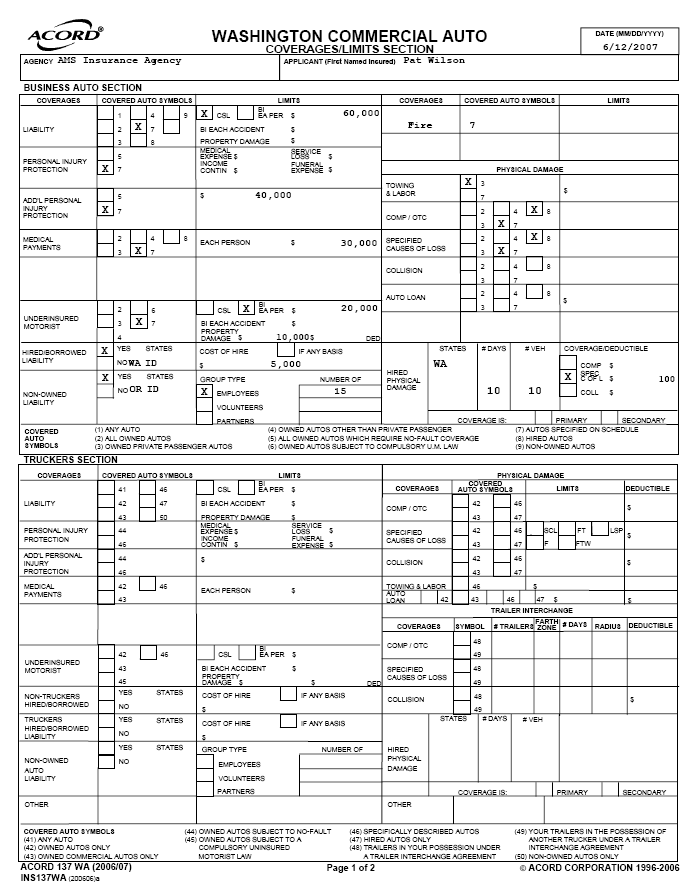
ACORD 137, Page 2Note that only one section of page 2, the "Endorsements" text box, corresponds to the Business Auto line of business.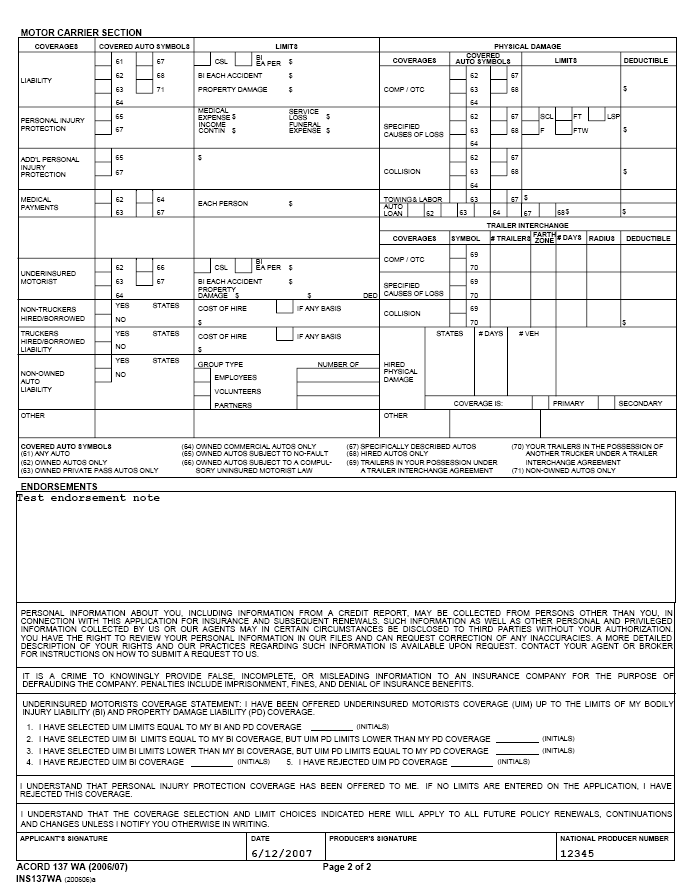
Or you may refer to a selection of images from the AMS360 user interface to determine which fields on the ACORD 137 Washington Commercial Auto form correspond to the depicted fields from AMS360.
Policy Data Entry Sections with Images of the ACORD 137The following images represent policy information fields in AMS360. Data flows from the AMS360 fields to a corresponding section on ACORD 137 Washington Commercial Auto form.
Click the images to view where data appears on ACORD 137.
Policy: First Named InsuredTo access these fields in AMS360, go to Policy > First Named Insured. The Declaration Name appears on the ACORD 137. 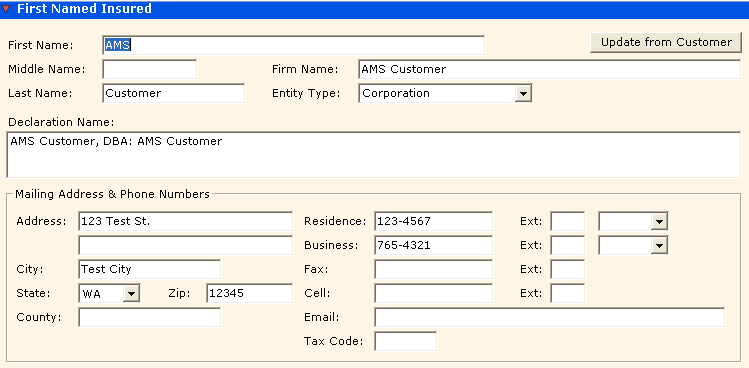
This policy applicant information originates in Customer Setup > Name and Address. If you click the button Update from Customer, information automatically flows from Customer Setup into these fields.
If you change/update the information here in the First Named Insured section of the Policy, these changes do not flow back to the customer. You may also have to update Customer Setup.
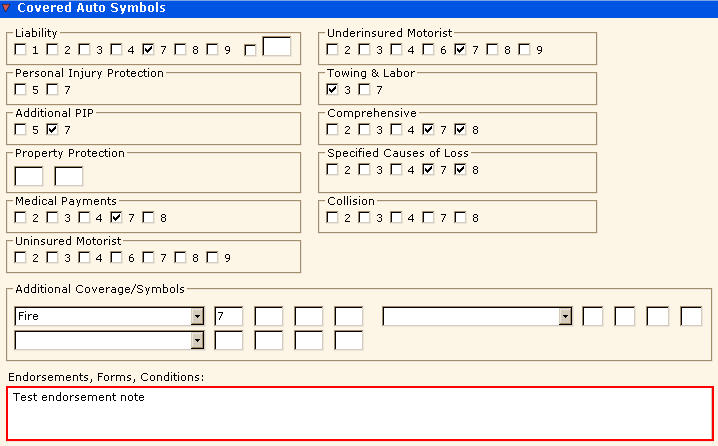
Line of Business FieldsCovered Auto SymbolsTo access these fields in AMS360, go to Policy > Line of Business > Business Auto > Covered Auto Symbols.
Note that the Fire coverage entered under Additional Coverages/Symbols in AMS360 fills in a blank data field under "Coverages" on the ACORD 137 form.
Although Covered Auto Symbols are accommodated by the Business Auto Section of ACORD 137, the data entered in the Endorsements, Forms, Conditions field flows to its own Endorsements section on Page 2 of the form.
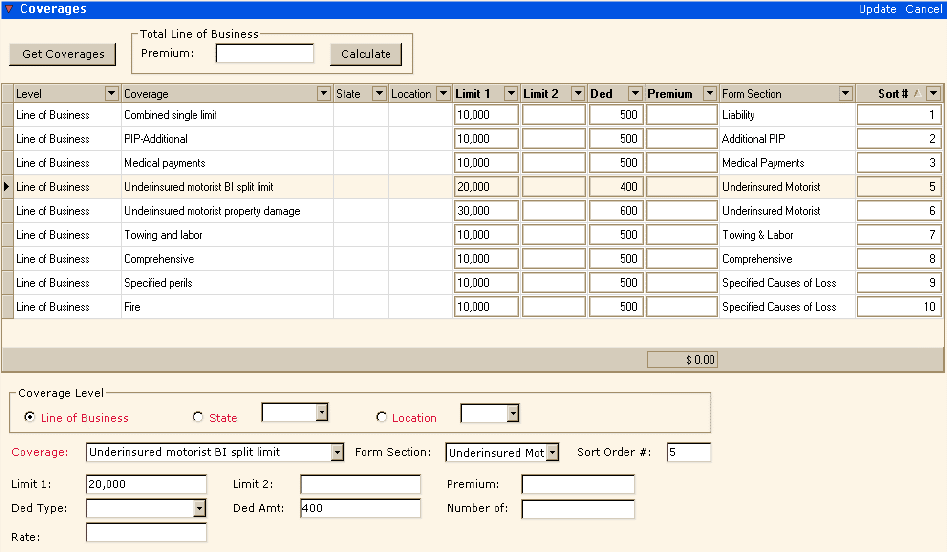
CoveragesMost Business Auto policy coverages are associated with a default Form Section category in AMS360. ACORD 137 represents many of these Form Section categories in its Business Auto section.
Data entered in the Coverages fields in AMS360 for a specific coverage appears on ACORD 137 under that coverage's Form Section category, if applicable. Data flows to the Limits subdivision of the ACORD form for the appropriate Form Section category.
A policy can include a Line of Business-level coverage that belongs to a Form Sectionnot represented on ACORD 137. It can also include a coverage that is not associated with any Form Section at all. Such coverages appear on the Additional Coverages and Endorsements overflow form.
To access these fields in AMS360 , go to Policy > Line of Business > Business Auto > Coverages.
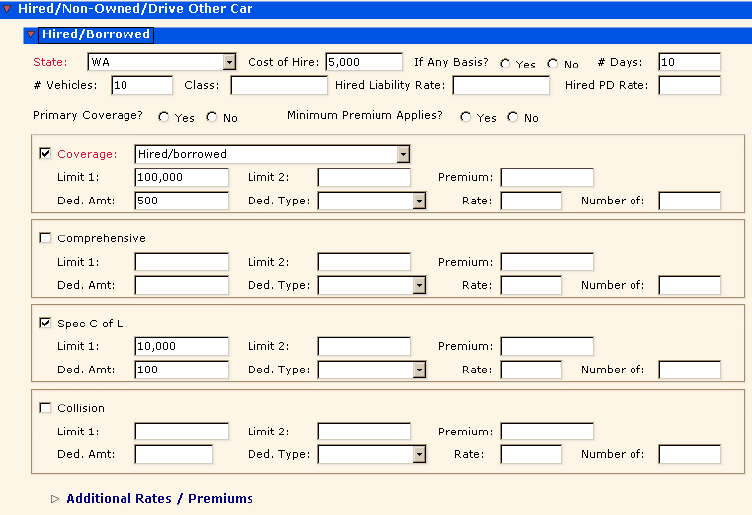
Hired/Non-Owned/Drive Other CarInformation entered in the Drive Other Car data fields does not appear on the ACORD 137 form.
For any policy that includes Drive Other Car coverage, AMS360 creates two overflow forms to accommodate the information: the Commercial Auto/Truckers/Motor Carriers form and the Additional Coverages and Endorsements form.
Hired/BorrowedTo access these fields in AMS360, go to Policy > Line of Business > Business Auto > Hired/Non-Owned/Drive Other Car > Hired/Borrowed.
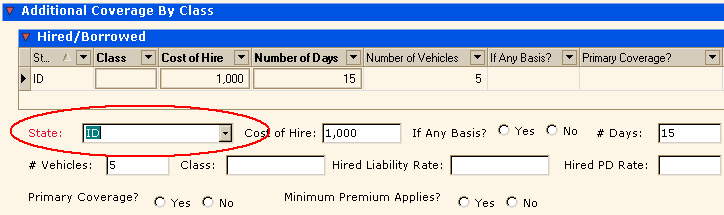
For a policy that includes more than one Hired/Borrowed coverage, only the State selection for the additional coverage appears on ACORD 137. More information about the additional coverage appears on the Commercial Auto/Truckers/Motor Carriers form, which AMS360 creates along with the ACORD 137.
To access these fields in AMS360, go to Policy > Line of Business > Business Auto > Hired/Non-Owned/Drive Other Car > Additional Coverage By Class > Hired/Borrowed.
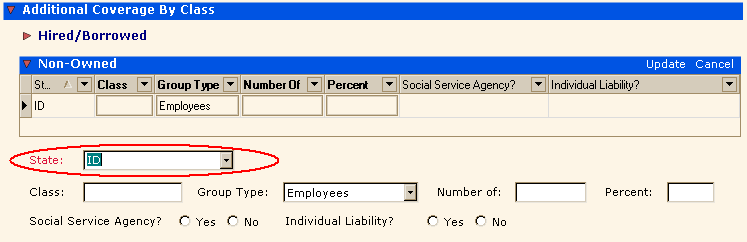
Non-OwnedTo access these fields in AMS360, go to Policy > Line of Business > Business Auto > Hired/Non-Owned/Drive Other Car > Non-Owned.
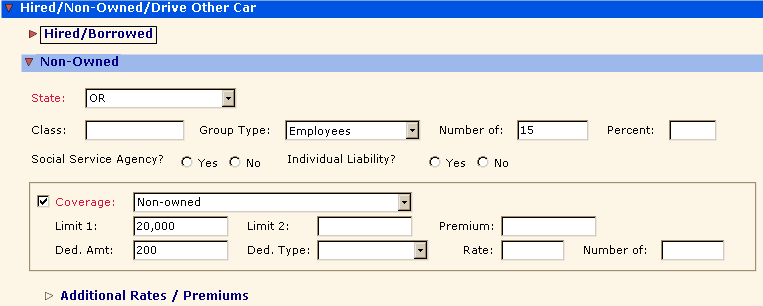
For a policy that includes more than one Non-Owned coverage, only the State selection for the additional coverage appears on ACORD 137. More information about the additional coverage appears on the Commercial Auto/Truckers/Motor Carriers form, which AMS360 creates along with the ACORD 137.
To access these fields in AMS360, go to Policy > Line of Business > Business Auto > Hired/Non-Owned/Drive Other Car > Additional Coverage By Class > Non-Owned.