This is one of several forms comprising the Business Auto policy. See Form Map: Business Auto for information about additional forms. The Business Auto form map topic also includes additional information about the application. |
Business Auto policy data flows from AMS360 to the ACORD 127 Business Auto Section form.
Property policy information from specific fields in AMS360 appears in corresponding ACORD 127 form fields. You can refer to the following sample of the ACORD 127 Business Auto Section form to determine the corresponding AMS360 fields.
 ACORD 127 with Images of the Policy Data Entry Sections
Click in the area of the ACORD 127 Business Auto Section form to view the AMS360 fields from which the information flows.
When you click on a section in the ACORD form, a pop-up image of the corresponding AMS360 field(s) appears. To close this image, click outside the ACORD form.
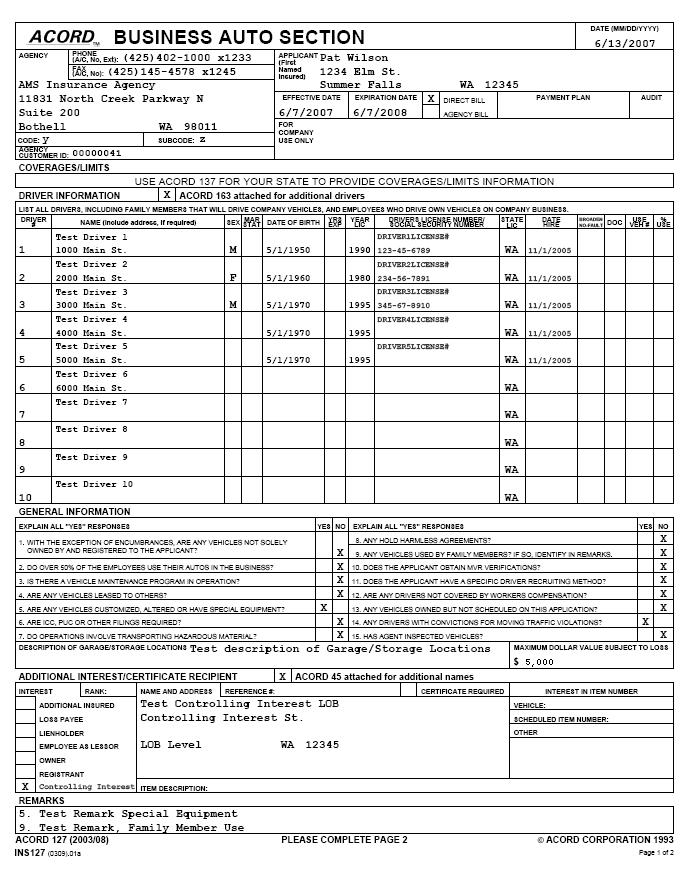
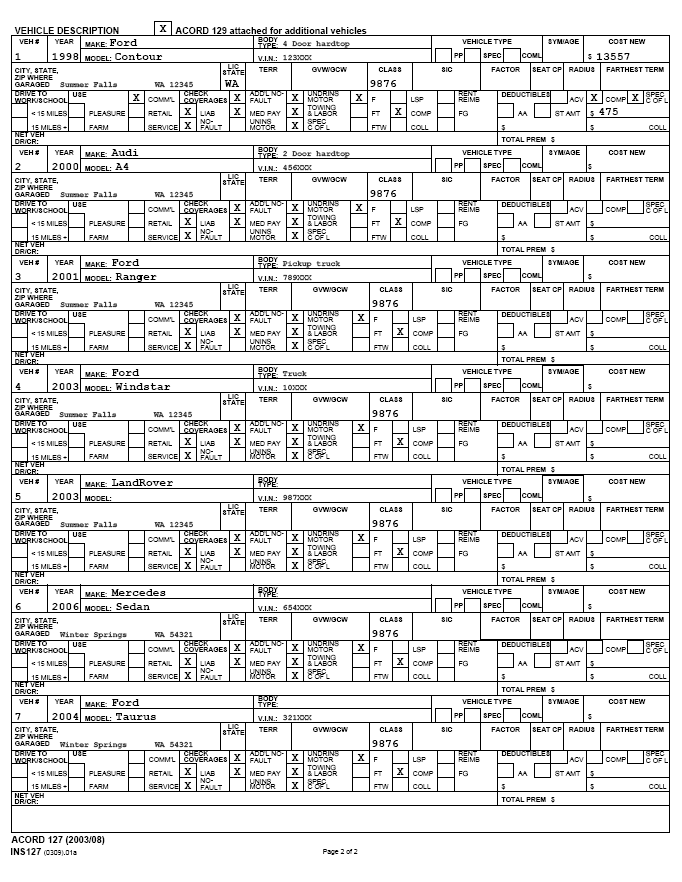
Or you may refer to a selection of images from the AMS360 user interface to determine which fields on the ACORD 127 Business Auto Section form correspond to the depicted fields from AMS360.
Policy Data Entry Sections with Images of the ACORD 127The following images represent policy information fields in AMS360. Data flows from the AMS360 fields to a corresponding section on the ACORD 127 Business Auto form.
Click the images to view where data appears on ACORD 127.
Policy: First Named InsuredTo access these fields in AMS360, go to Policy > First Named Insured.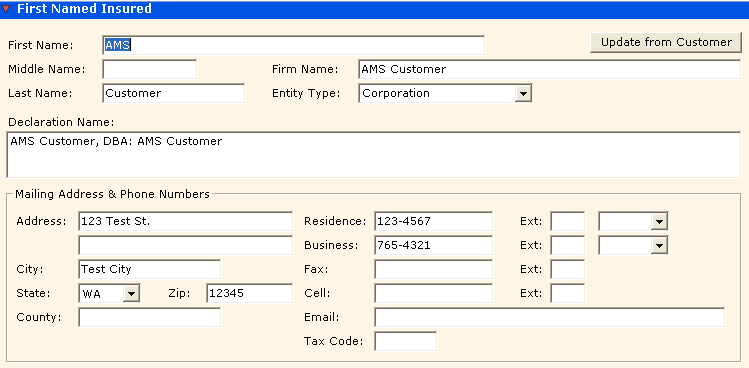
This policy applicant information originates in Customer Setup > Name and Address. If you click the button Update from Customer, information automatically flows from Customer Setup into these fields.
If you change/update the information here in the First Named Insured section of the Policy, these changes do not flow back to the customer. You may also have to update Customer Setup.
Policy: Basic Policy InformationTo access these fields in AMS360, go to Policy > Basic Policy Information. 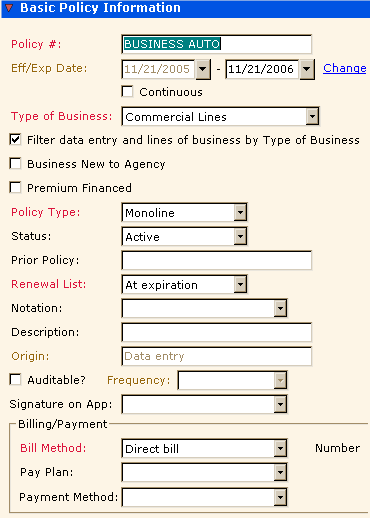
Additional Policy Information: Master Code and Sub CodeTo access these fields in AMS360, go to Policy > Basic Policy Information > Additional Policy Information. 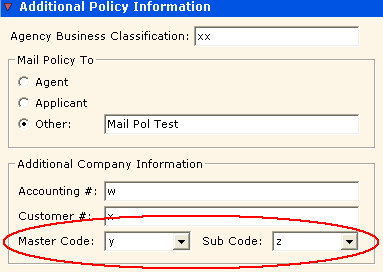
Line of Business FieldsDriver InformationTo access these fields in AMS360, go to Policy > Line of Business > Business Auto > Driver Information.
The information in the highlighted grid row originates in the information fields below the grid. Each row in the grid represents an individual driver covered by the policy. This example shows open information fields for Driver #0001. 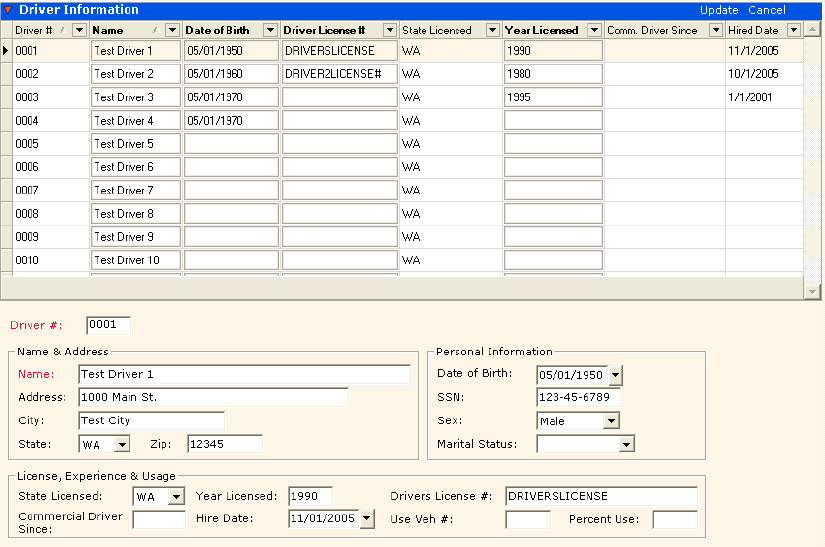
ACORD 127 accommodates only the first ten covered drivers. If a policy covers more than ten drivers, then AMS360 creates an overflow form that lists the additional drivers. The overflow form is called ACORD 163 Commercial Auto Driver Information Schedule.
General InformationTo access these fields in AMS360, go to Policy > Line of Business > Business Auto > General Information. 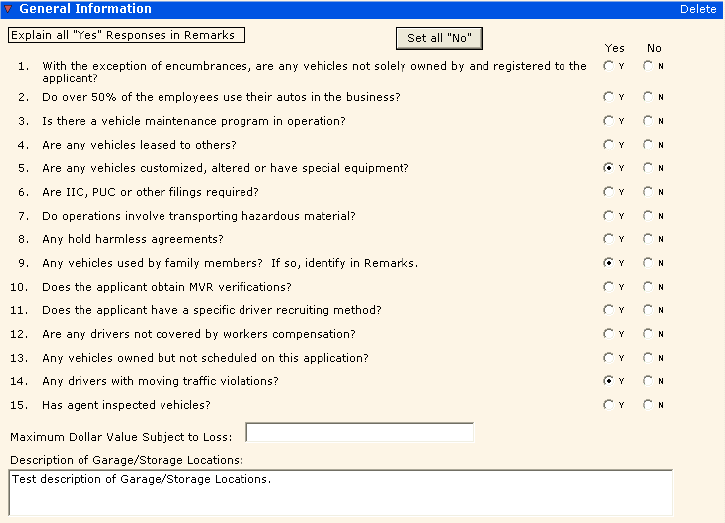
Additional InterestsTo access these fields in AMS360, go to Policy > Line of Business > Business Auto > Additional Interests.
In AMS360, if the Additional Interest Type matches one of ACORD's preset interest categories, then on ACORD 127, there will be an X in the box labeled with the appropriate category name. If the Type does not match any of the preset categories, then the X appears in the unlabeled box on ACORD 127.
If there is data in the Interest: Rank field in AMS360, it flows to the box on ACORD 127 labeled "Rank." 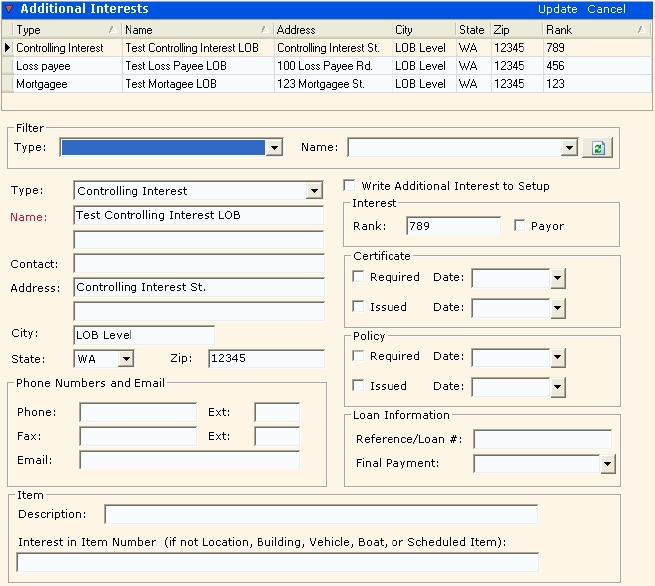
ACORD 127 accommodates only one entry under Additional Interests at either the Line of Business level or Vehicle Information item level. If a policy includes multiple Additional Interests at these levels combined, then AMS360 lists the overflow items on the ACORD 45 Additional Interest form.
If there is one Additional Interest under Line of Business, and one under Vehicle Information, then only the Line of Business interest flows to ACORD 127. The Vehicle Information interest overflows to ACORD 45.
RemarksTo access this field in AMS360, go to Policy > Line of Business > Business Auto > Remarks. 
Garage LocationsThe garage information that appears on ACORD 127 depends on which Garage Location you select for each specific vehicle in the Vehicle Information section of AMS360.
However, before you can select a location for a vehicle, you must first enter data in the Garage Location fields. To access these fields in AMS360, go to Policy > Line of Business > Business Auto > Garage Locations.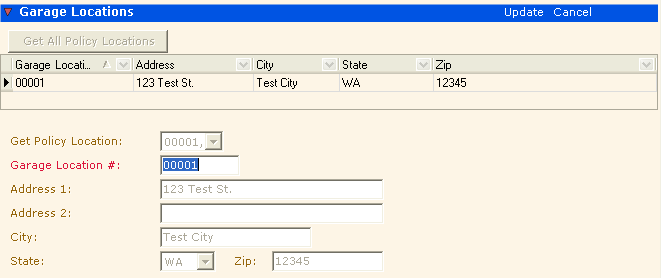
The ACORD 127 form accommodates only the first seven covered vehicles. If a policy covers eight or more vehicles, then AMS360 creates an overflow form that lists the additional autos, including their Garage Locations. The overflow form is called ACORD 129 Vehicle Schedule.
Vehicle InformationTo access these fields in AMS360, go to Policy > Line of Business > Business Auto > Vehicle Information.
The information in the highlighted grid row originates in the information fields below the grid. Each row in the grid represents an individual vehicle covered by the policy. This example shows open information fields for Vehicle #00001. 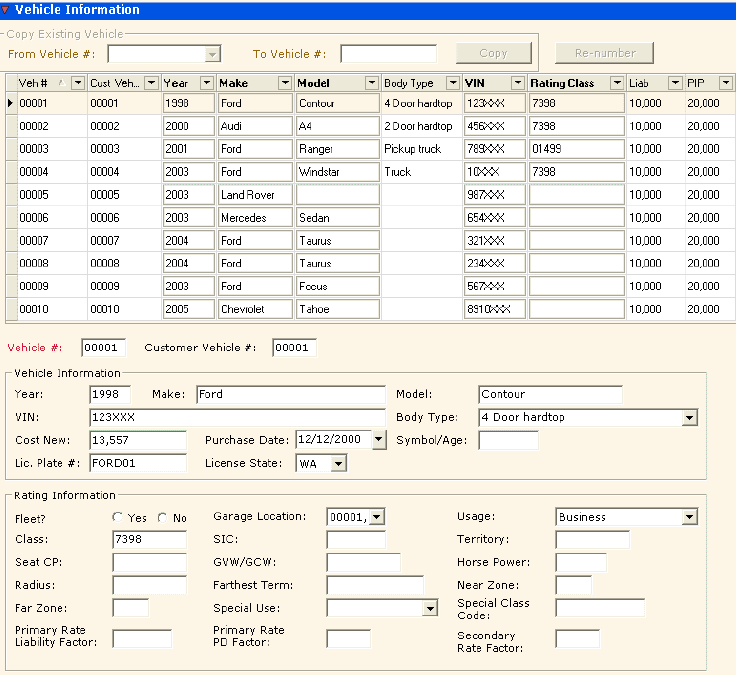
ACORD 127 accommodates only the first seven covered vehicles. If the policy covers more than seven vehicles, then AMS360 creates an overflow form that lists the additional autos. The overflow form is called ACORD 129 Vehicle Schedule.
Vehicle Coverages/Limits/Premiums
To access these fields in AMS360, go to Policy > Line of Business > Business Auto > Vehicle > Information > Vehicle > Coverages/Limits/Premiums.
The information in the highlighted grid row originates in the information fields below the grid. Each row in the grid represents a specific coverage for the vehicle currently selected in the Vehicle Information section.
This example shows open information fields for PIP-Basic coverage for Vehicle #00001. 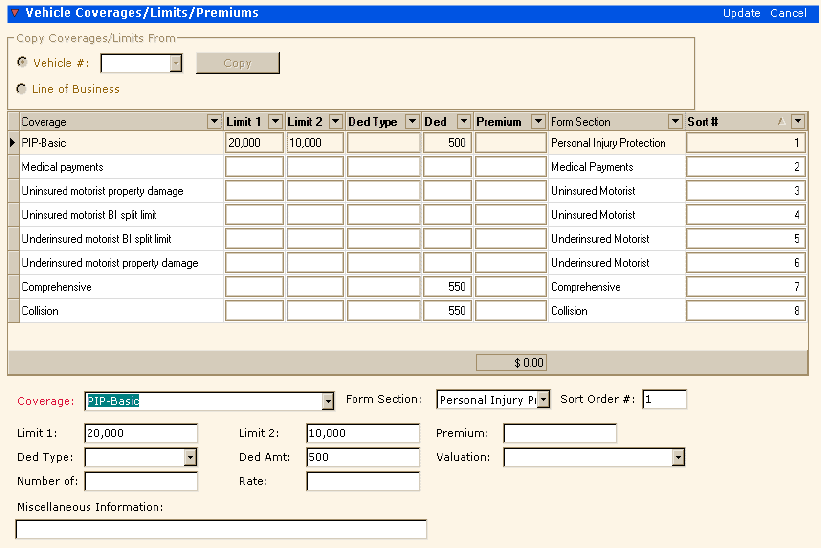
When you select a new Coverage for a vehicle, AMS360 automatically associates the appropriate Form Section category with that coverage. (You can also manually select a Form Section for the coverage.)
The "Vehicle Description" section on ACORD 127, features labeled check boxes that represent many of the Form Section categories in AMS360. If a policy includes at least one coverage in a Form Section category that is represented on ACORD 127, then an X appears in the appropriately labeled check box on the ACORD form. If applicable, Limit and Ded Amt data also flows to the ACORD 127 form for some coverages.
Note that in this example from AMS360, there are multiple Uninsured Motorist and Underinsured Motorist coverages listed in the Form Section column.
When a policy includes multiple vehicle-level coverages under the same Form Section category, then ACORD 127 accommodates only one of the coverages, and additional data overflows to the Additional Vehicle Coverages form.
A policy can include vehicle-level coverage that belongs to a Form Section not represented on ACORD 127. It can also include a coverage that is not associated with any Form Section at all. Such coverages appear on the Additional Vehicle Coverages overflow form
Additional Interests
To access these fields in AMS360, go to Policy > Line of Business > Business Auto > Vehicle Information > Additional Interests.
In AMS360, if the Additional Interest Type matches one of ACORD's preset interest categories, then on ACORD 127, there will be an X in the box labeled with the appropriate category name. If the Type does not match any of the preset categories, then the X appears in the unlabelled box on ACORD 127.
If there is data in the Interest: Rank field in AMS360, it flows to the box on ACORD 127 labeled "Rank." 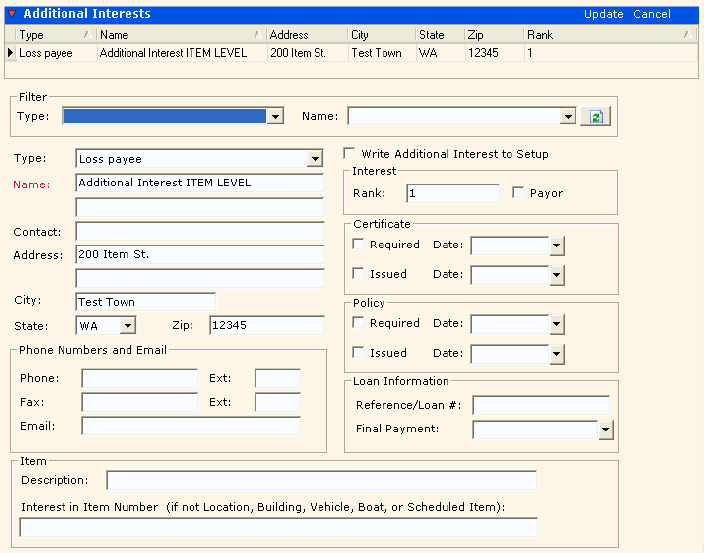
ACORD 127 accommodates only one entry under Additional Interests at either the Line of Business level or Vehicle Information item level. If a policy includes multiple Additional Interests at these levels combined, then AMS360 lists the overflow items on the ACORD 45 Additional Interest form.
If there is one Additional Interest under Line of Business, and one under Vehicle Information, then the Vehicle Information interest will overflow to the ACORD 45. In this case, only the Line of Business interest will flow to ACORD 127.