Form Map: Equipment Floater Section (ACORD 146)
This is one of several forms comprising the Inland Marine (C) policy. See Form Map: Inland Marine (c) for information about additional forms. |
Property policy information from specific fields in AMS360 appears in corresponding ACORD 146 form fields. You can refer to the following sample of the ACORD 146 Equipment Floater Section form to determine the corresponding AMS360 fields.
 ACORD 146 with Images of the Policy Data Entry Sections
Click in the area of the ACORD 146 Equipment Floater Section form to view the AMS360 fields from which the information flows.
When you click on a section in the ACORD form, a pop-up image of the corresponding AMS360 field(s) appears. To close this image, click outside the ACORD form.

Alternatively, you may refer to images from the AMS360 user interface to determine which fields on the ACORD 146 form correspond to the depicted fields from AMS360.
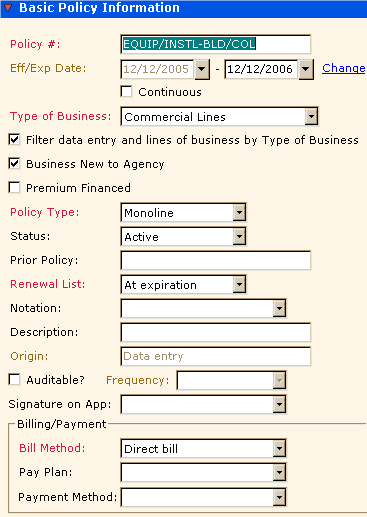
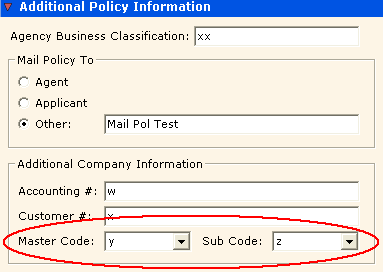
Policy Data Entry Sections with Images of the ACORD 146AMS360 creates the ACORD 146 Equipment Floater Section form for any Commercial Inland Marine policy that includes equipment floater coverage. Click the following images from AMS360 to view where the data appears on the ACORD 146 form.
Policy: First Named InsuredTo access these fields in AMS360, go to Policy > First Named Insured. The Declaration Name appears on the ACORD 146. 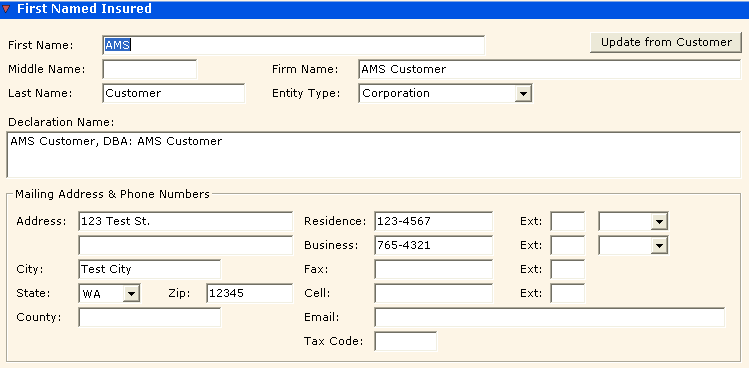
This policy applicant information originates in Customer Setup, Name and Address section. If you click Update from Customer, information automatically flows from Customer Setup into these fields.
You can also edit the information directly inside the First Named Insured fields. Because Declaration Name is the AMS360 field from which information flows into the ACORD 146 form, editing here will modify the information that appears on ACORD 146.
 Line of Business Fields: Equipment Floater
To access these fields in AMS360, go to Policy > Line of Business > Inland Marine (c) > Equipment Floater. 
Equipment StorageTo access these fields in AMS360, go to Policy > Line of Business > Inland Marine (c) > Equipment Floater > Equipment Storage. 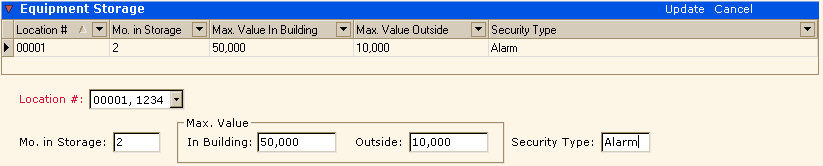
In the Location # field, you can select a location from the list. But first you must add locations into Policy > Line of Business > Inland Marine Locations/Job Sites.
Equipment SummaryBefore you can save data to the subsections under Equipment Summary, you must select either a Location # or Blanket option, and you must also select a Category.
You can select a location from the list, but first you must add locations into Policy > Line of Business > Inland Marine Locations/Job Sites.
Coverages
To access these fields in AMS360, go to Policy > Line of Business > Inland Marine (c) > Equipment Floater > Equipment Summary > Coverages. 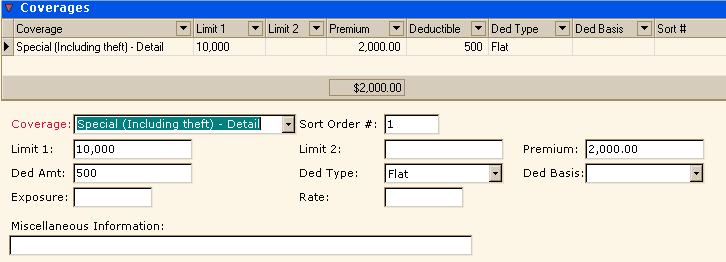
Scheduled Equipment
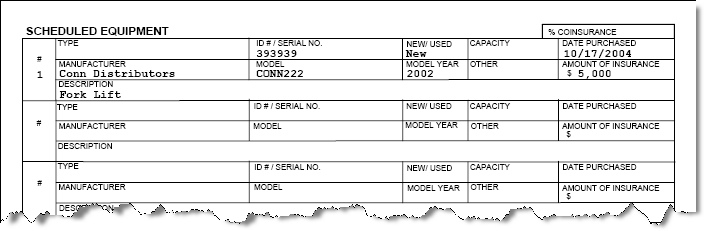
For any policy with Scheduled Equipment under the Equipment Floater section, AMS360 creates a Scheduled Equipment overflow page as part of the ACORD 146. Information about scheduled items is listed on this page.
To access these fields in AMS360, go to Policy > Line of Business > Inland Marine (c) > Equipment Floater > Equipment Summary > Scheduled Equipment.
This example shows open information fields for Item # 0001. 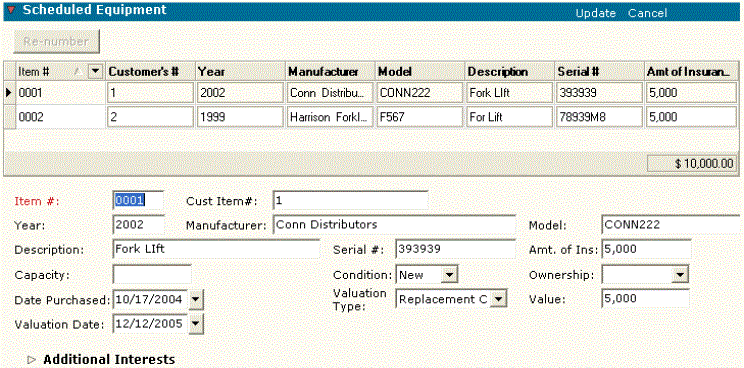
You can enter item-specific Additional Interests under Scheduled Equipment. This information appears on the ACORD 146 form along with any other Additional Interests entered at the level of the line of business. 
If a policy includes more than four total Additional Interests (including entries at the Line of Business and item-specific levels), then AMS360 creates the ACORD 45 Additional Interests form to accommodate the overflow information.
Unscheduled Equipment
To access these fields in AMS360, go to Policy > Line of Business > Inland Marine (c) > Equipment Floater > Equipment Summary > Unscheduled Equipment.
This example shows specific Unscheduled Equipment information entered under the selection Manufacturer's Output in the Equipment Summary section. 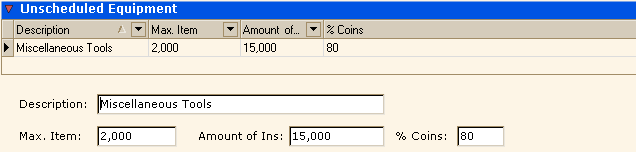
Additional Interests
To access these fields in AMS360, go to Policy > Line of Business > Inland Marine (c) > Equipment Floater > Equipment Summary > Additional Interests. 
The Additional Interests section of ACORD 147 accommodates four entries.
Additional Interests entered here under Equipment Summary appear on the ACORD 147 form along with any additional interests added at the item-specific level.
If a policy includes more than four total Additional Interests (including entries at the Line of Business and item-specific levels), then AMS360 creates the ACORD 45 Additional Interests form to accommodate the overflow information.
General InformationTo access these fields in AMS360, go to Policy > Line of Business > Inland Marine (c) > Equipment Floater > General Information. 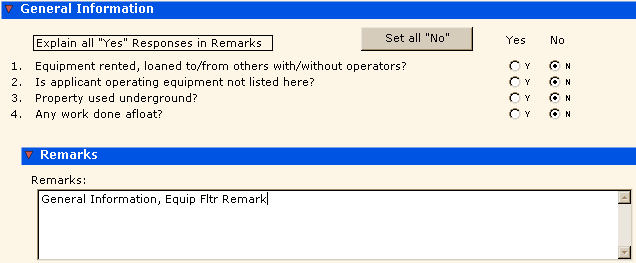
If there is data entered in the Remarks field under General Information, then it appears on ACORD 146 in the Remarks section of the form.
If no data is entered here, then any data from the Remarks section under Equipment Summary flows to ACORD 146 instead.
RemarksTo access these fields in AMS360, go to Policy > Line of Business > Inland Marine (c) > Equipment Floater > Remarks. 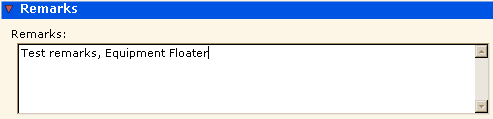
This information appears in the Remarks section of ACORD 146 only if there is no data in the Remarks field under General Information.
If the General Information section does include data in the Remarks field, then that data appears in the Remarks section on ACORD 146 instead.