Workflow: Process Policy Download Files
You receive downloads in one of two ways: through IVANS or directly from the carrier (direct downloads).
- For AMS360 Online users, IVANS downloads are processed at the Vertafore Data Center each weekday morning.
- For AMS360 in-house users, IVANS downloads are processed by a daily job on the AMS360 SQL server.
For both AMS360 Online and in-house users, IVANS downloads will typically have been processed prior to the following steps. |
Carriers that download directly to you (not using IVANS) have their own software or web site information set up and loaded on a workstation in your office.
The daily recommended workflow to process downloads is:
- Process any direct download files.
- Process any transactions in Assign Customers/Policies (both policy and accounting transactions). For more information on assigning customers, see SOL21070 on My Vertafore.
- Review the Download Session Log Report for the current date.
- Review the Download Report for the current date.
 Process Direct Downloads
In this section you'll be moving Direct Download files into the area where they can be processed and loaded into your AMS360 database. The steps are:
- From the 360 Toolbox menu, click Integration >Download > Move Download Files.
- On the Move Files window verify that Delete Files after Move and Process Files Immediately boxes are marked, and then click Browse and Move Files.
- In the Download: Move Files window, browse to the folder where the direct downloads are stored. Select all files and click Open.
The default file type search is set to (*.AL3) files. Some carriers send download files with an extension other than .AL3. If necessary change the file type search to All Files. |
Assigning Customers (and policies)Policies that don't automatically match during download processing become available for you to manually assign a customer and possibly a policy. AMS360 uses certain matching criteria for download policies such as policy numbers, effective/expiration dates, and parent company or NAIC code. When a policy doesn't meet the criteria it's not moved into the database, but is saved for you to decide where it goes.
Use the following steps to assign customers and policies:
- From the 360 Toolbox menu, click Integration >Download >Assign Customers/Policies.
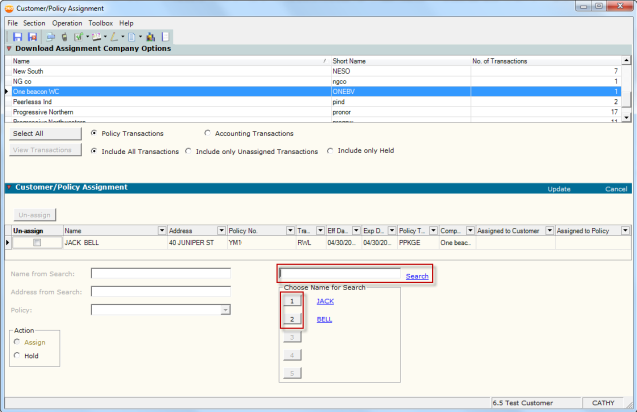
- The Customer/Policy Assignment page shows a list of all carrier/writing companies and the number of policies that are waiting to be assigned. You can view all policies to assign by clicking Select All, or select an individual carrier name to see only their policies. Once you've made your selection, click View Transactions.
- Select a customer from the list and click Edit.
- It is important to confirm the customer doesn't already exist in AMS360. You can search using the names listed in the Choose Name for Search box by clicking the number next to the name, or enter the name in the search field and click Search.
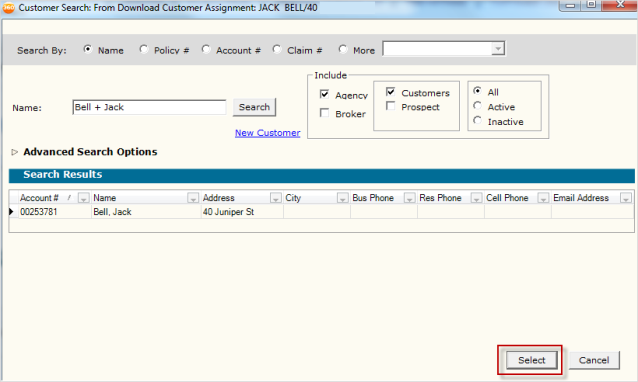
- If the customer name appears, select it and click Select. If the customer is new to AMS360, you can click the New Customer link to create it. After creating and saving the customer you'll return to the Customer Search page with the customer you've just added showing the Search Results list. Select the customer in the list, and then click Select.
- Back on the Assign Customer/Policy window, use the Policy drop-down box to find a match for the downloaded policy. You can choose a TBD policy or an existing policy (current or prior term if it is a renewal). If it's a new policy for the customer, leave the Policy field blank.
The customer you selected in the search appears in the Assigned to Customer column. If a policy was selected, it will appear in the Assigned to Policy column. |
- When you're finished making your customer and policy selections, click Update.
Repeat steps 4 to 7 for all policies in the list.
- When you've finished assigning, click Save and Close.
- A message appears notifying you that Process Transactions has been scheduled to run on the server. Click OK. Process Transactions is what moves the policies into your agency's database.
Download ReportsWe recommend you review the following reports each day as part of your daily download workflow:
Download Session Log Report This report verifies that download data was received in your AMS360 system. Use the following steps to view the report:
- From the 360 Toolbox menu, click Classic Reports.
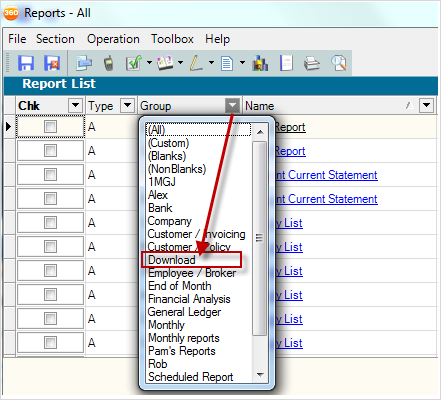
- On the Reports - All window click the down arrow in the Group column and select Download. This will change the reports displayed to only those in the Download group.
- Click the Download Session Log Report link.
- On the Report – Download Session page select a Date Range and click the Preview icon.
Because IVANS downloads process earlier in the day than direct downloads, to view all the downloads received for a day select the same date in both fields. Alternatively, you may choose from the Process Date field to select only a specific time and date. |
- To verify that all downloaded policies were merged into your AMS360 database and none were rejected, click the Find Text icon to search individually for the each of the following key words: invalid, unable, reject, unknown, and NAIC. If the search doesn't find any of these words on the report, then the download completed successfully.
It's important to review and troubleshoot any messages on the report. |
Download Report This report details what was downloaded from the carrier and any errors in loading the transaction to the customer. Use the following steps to view the report:
- From the 360 Toolbox menu, click Classic Reports.
- On the Reports - All window click the down arrow in the Group column and select Download. This will change the reports displayed to only those in the Download group.
- Click the Download Report link.
- On the Report – Download Detail select Current Date (to see the entire day's downloads) in the From List box and click the Preview icon.
Alternatively, you can filter by a Process Date and time, an expanded Date Range, or by Company. |
The report shows all policies received for the date(s) selected. Each has a status of either Loaded or Rejected. Additional warnings or messages may also appear. For example, a policy may have been saved to the database, but a part of the transaction didn't. Review the report for the status and any messages.
For more information about the messages you can see on the report and how to resolved them see the Troubleshooting Download Messages topic. |
Download Electronic Email Report This report displays memos that were sent by carriers via download. Use the following steps to view the report:
- From the 360 Toolbox menu, click Classic Reports.
- On the Reports - All window click the down arrow in the Group column and select Download. This will change the reports displayed to only those in the Download group.
- Click the Download Electronic Email Report link.
- On the Report – Download Detail select Current Date (to see the entire day's downloads) in the From List box and click the Preview icon.
- The report shows any electronic notices such as cancellation notices or address changes sent by carriers.
Additional InformationThis workflow assumes that all download setups have been completed and you were ready to receive downloads. For steps on setting up a carrier for download, please see SOL32808 on My Vertafore.