AMS360 Client Revision 13
Vertafore will be deploying software updates for version AMS360 25R2. As a result, on or after October 24, 2025, all AMS360 25R2 users will be required to download and install the new AMS360 client software (Rev 13) to connect and utilize AMS360. (Rev 13 is backwards compatible to AMS360 24R1).
How to Update or Install the Revision 13 Client
Make sure you save all your work before running this installation. AMS360 Client Rev 13 requires .net framework 3.5 and 4.8 to be installed. If 4.8 is not installed, the installer will try to download and install this first, which reboots the workstation after .net Framework has been installed. Once the workstation reboots, you will need to restart the AMS360 install. You need to ensure that 3.5 is installed before you install the AMS360 Client.
-
Download AMS360 Client Rev13.
NOTE: The above .exe download file is 257MB.
For agencies that wish to distribute the install with group policy, download AMS360 Client Installer Rev13 MSI file. NOTE: This .msi download file is 268MB.
-
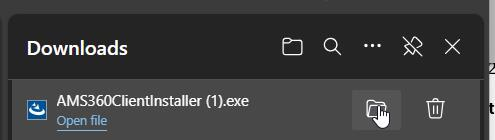
Save the file and be sure to open it via File Explorer.
NOTE: If Microsoft gives a warning that states this is not commonly downloaded, please ignore and keep the file.
-
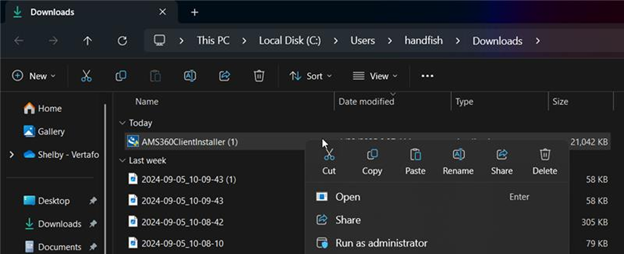
Right-click on AMS360ClientInstallerRev13, and click Run as Administrator.
-
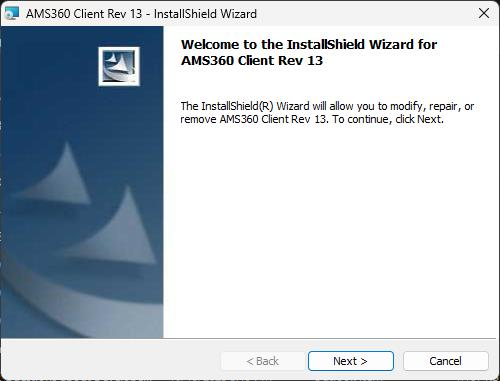
You will see the Client Rev 13 welcome installation screen. Click Next. Follow any prompts that appear. In most cases, the client installer will load without additional intervention.
-
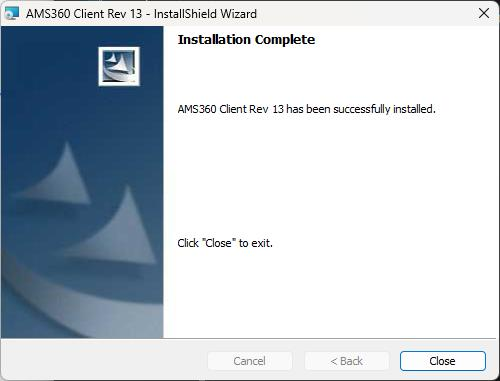
Click Close at the Installation Complete dialog.
-
You may now log into AMS360.
If you run into errors or unusual messages, we suggest restarting your computer before taking any other measures.
PLEASE NOTE
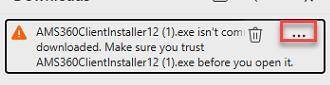
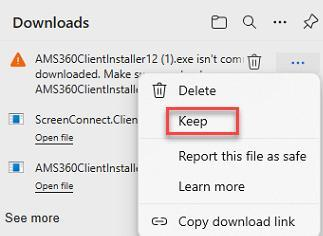
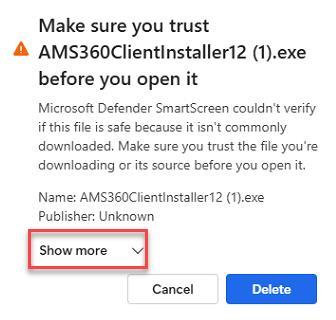
Based on their security setup, some workstations may be required to select "Keep" in the below workflow to ensure that AMS360 is installed properly. Follow these steps:
-
Click on the three parallel dots.
-
Select Keep.
-
Select Show More.
-
Select Keep Anyway.