Cross Sell UI/UX Enhancements
Updated March 13, 2026
Update Cross Sell UI to Use v2 API Instead of v1
Cross-Sell UI now leverages v2 API for Machine Learning results, which helps with improved consistency and data accuracy.
-
v1: Returns product recommendations with buy percentages, based on the previous 12 months of policy data to identify coverage gaps and cross-sell opportunities
-
v2: Provides machine learning-driven cross-sell recommendations using RiskMatch data to identify potential coverage gaps and opportunities.
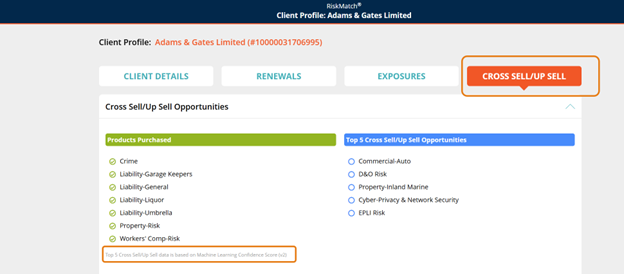
Navigate to a Client Profile and then click Cross Sell/Up Sell. In the Cross Sell/Up Sell Opportunities section, you will see that the data is based on the Machine Learning confidence score (v2).
Updated November 3, 2023
New Cross Sell Interface
The new Cross Sell interface provides easy access to saved or recently run reports for scheduling data updates, and to automatically run reports at a predetermined frequency. Users may select filters for a report from a single side panel and immediately see the number of clients and peers being selected. Cross Sell reports can be run for specific people within the agency, and improvements have been made to RiskMatch reporting and exporting options.
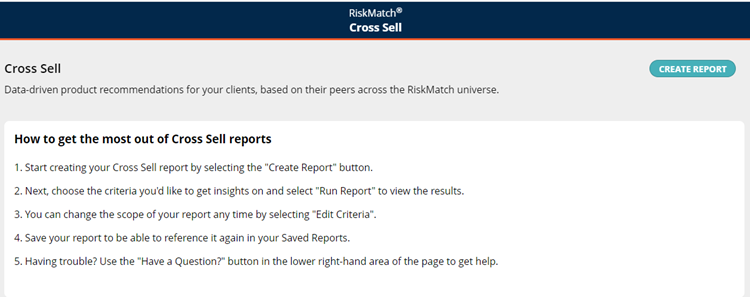
Cross Sell Opening Screen — First Time
The first time Cross Sell is opened, a help screen appears. Click the "Create Report" button on the right to begin.
Cross Sell Opening Screen — All Subsequent Instances
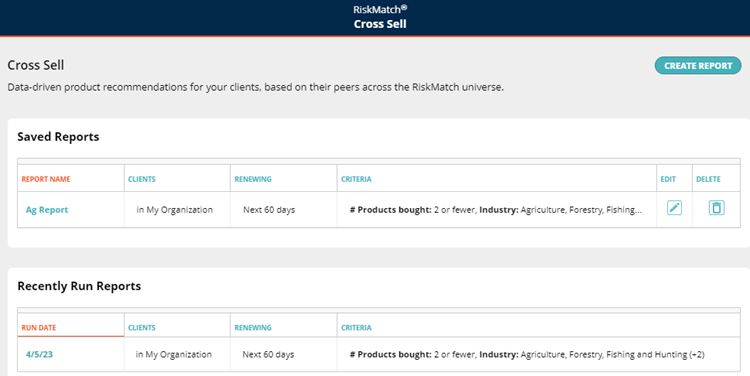
Once a report has been created, the opening screen will show any reports previously saved, as well as those recently run but not yet saved.
Under Saved Reports
-
Reports may be run by clicking on the report name.
-
Click "Edit" to change report criteria
-
Click "Delete" to remove a report.
For Recently Run Reports, click "Run Date" to edit or save the report.
Selecting Cross Sell Criteria
-
Click the "Create Report" button to open the criteria selection panel.
-
Choose the two required fields: Clients and Renewal Period.
-
Apply any other filters to narrow the recommendation.

|
Note: The number of clients for the report are shown at the bottom of the selection panel. These numbers will change as filters are applied. |
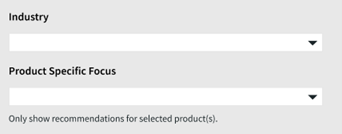
NEW: Cross Sell Product Specific Focus
With the new machine learning, a "Product Specific Focus" filter has been added. Making selections within this filter will show recommendations only for selected products in the Cross Sell report.
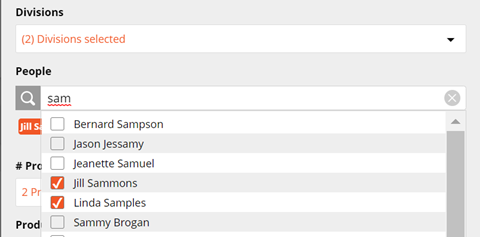
NEW: People Filter
The "People" filter allows a report to be run that is connected to specific individuals within an organization. To apply, begin typing a name and use the check box to select one or more specific individuals.
Advanced Criteria
It is possible to further define client-set — by company size, organization type, and client locations — by expanding the "Advanced Criteria" sub-panel.
Run Cross Sell Report
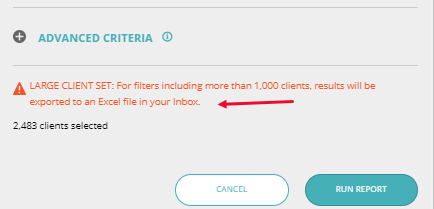
Once selections have been made in the criteria panel, click "Run Report."
If there are more than 1,000 clients, a notice to that effect will appear and the report will be saved directly to the RiskMatch inbox. For fewer than 1,000 clients, the selection panel will close and the cross sell report will be displayed.
Cross Sell Report
In the Cross Sell report, "Target Client Settings" may be expanded to show selections, if desired.
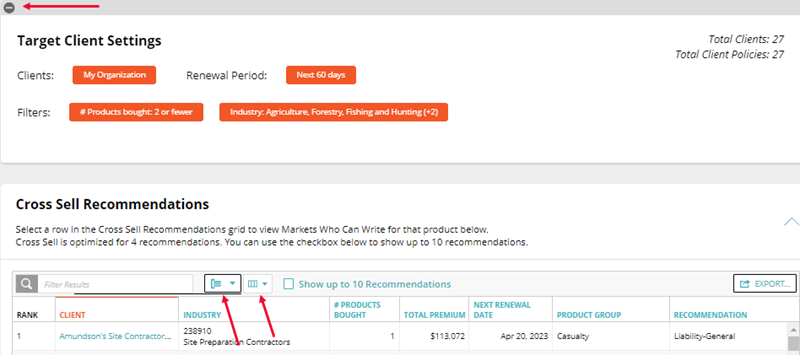
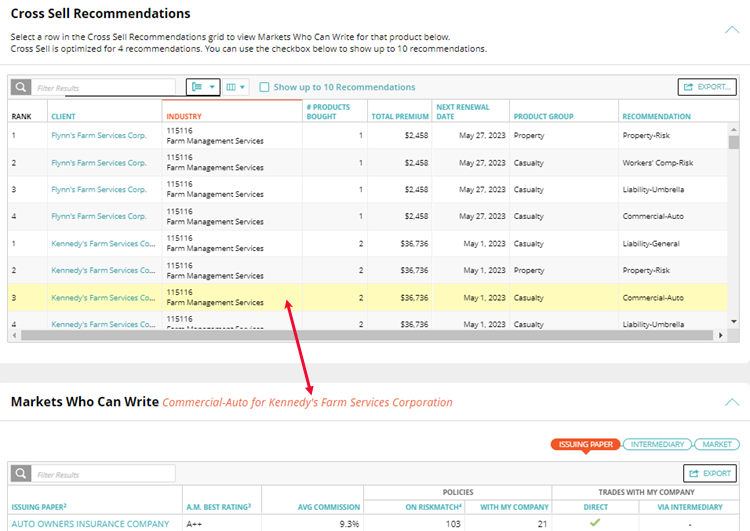
Cross Sell Recommendations are displayed with eight default columns. Press the teal-colored column headers to sort any column. Users may group recommendation rows by Client, Number of Products Bought, or Product Group by making selections within the grouping icon to the right of the search bar. All fields available in the exported report can be added to the display with the "Select Columns" icon. This includes the Percent Who Buy, which appeared in earlier versions as a bar graph.
Exporting the Cross Sell Report
Cross Sell can be exported via the Microsoft Excel format. New in this version is the ability to save the report according to Account Owner or Producer, which will create an Excel file that contains a new tab for each account owner or producer.
If you have done programming around Exported Reports, there is a new variable rank in Column A of the spreadsheet.
Showing Markets Who Can Write
When the Cross Sell Report is displayed, users can explore "Markets Who Can Write" for the recommendation by selecting a row. This row will be highlighted in pale yellow. By pressing on the yellow highlight, a panel will be presented below it for "Markets Who Can Write." Tabs to the right of the report depict branded, intermediate and market-issuing papers. This report is exportable to Excel.
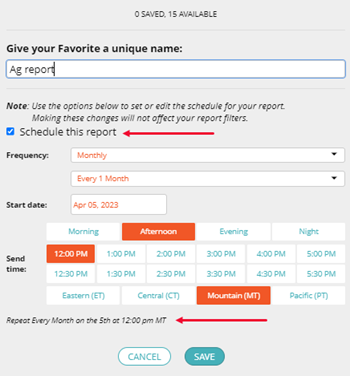
Save and Schedule a Report
Click the "Save New Report" button at the top of the report page to name the report. Check the "Schedule This Report" checkbox to choose the report's frequency, start date, and send time. A summary statement will appear below the selection. Click the "Save" button to confirm the scheduling. The Cross Sell report will then be delivered to the RiskMatch inbox at the preselected frequency.