Personalize User Password Reset
The User Password Reset feature allows users to reset their own passwords through the system rather than involving a system administrator. The feature is optional.
 Configuration
To use this feature, the Sagitta Instance needs to be Registered on the Vertafore Services Personalization page.
Update the following fields on the Passwords Restrictions page (Other > Personalization > Client/Users).
- Allow User Password Reset Users reset their own passwords through a link during the login process. The drop-down list for this field includes the values null, Yes, and No. It is defaulted to null (User Password Reset functionality not enabled). When this field is set to Yes, the next field is required.
- Maximum Password Reset Attempts within a Day—controls the number of times (1-5) that a user can request a password reset in a day (that day starts when the overnight process completes, and ends when the next overnight process starts).
- Require Sagitta-Specific Security Question—requires users to answer a Sagitta-specific question during the reset process. When Allow User Password Reset is set to Yes, this field is automatically set to Yes.
When the System Coordinator enables User Password Reset, a link will display on the Sagitta login page. When the link is clicked, the password reset process is initiated.
Security Question Set Up
After the System Coordinator enables the User Password Reset feature, each user will be required to set up security questions. Upon logging in, the user will be redirected to the Security Questions Setup page. Select and answer three Security Questions from the drop down lists, and then click Continue. To defer this process, users can click Later in the prompt. The Security Questions Setup page will display upon each login until security questions with valid answers have been saved on the account. After completing the setup, subsequent logins will go directly to the Sagitta Home page, as normal.
Click the question mark button in the Security Questions Setup prompt to see a list of Tips for Security Questions.
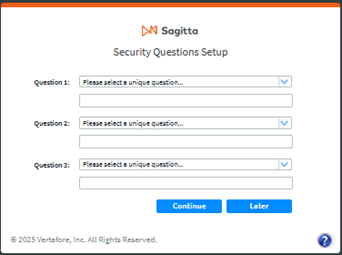
Security question entry requirements:
- A different question must be selected for Question 1, 2 and 3
- Each question must have an answer between 3 and 255 characters (any character is valid)
Unsuccessful Password Reset conditions
- If the Security Questions are not set up
- No email will be sent, but an email sent message will be displayed for security purposes.
- If the User ID entered belongs to a valid Sagitta user, and the maximum attempts for the User ID has not been reached for that day, but there is no email address on the user’s Staff record
- No email will be sent, but an email sent message will be displayed for security purposes.
- If the User ID entered does not belong to a valid Sagitta user, and the maximum attempts against that User ID has not been reached for that day
- The reset attempt count for the invalid User ID will be incremented. An email will not be sent, but an email sent message will be displayed for security purposes.
- If the Cancel button is clicked on the Reset Password page
- The Sagitta login page displays.
Edit User Security Questions
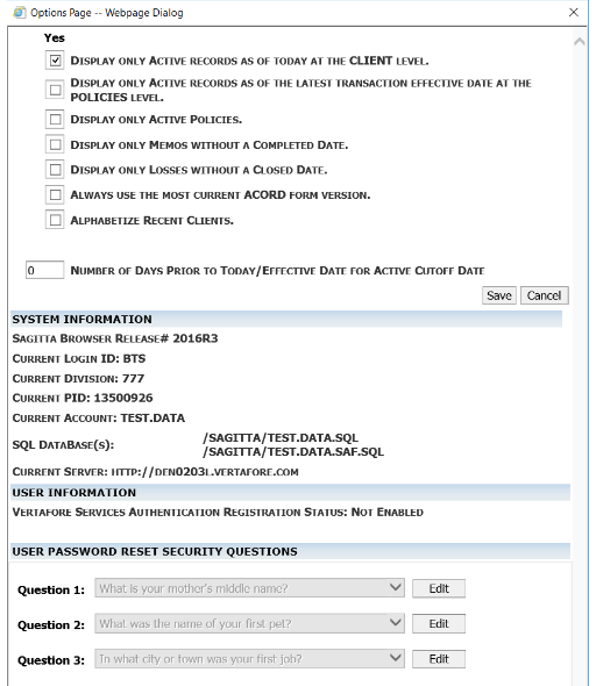
Users who have already set up their security questions are able to edit their questions and answers on the Options page, which can be accessed via Options on the Global navigation bar. Note that the User Password Reset Security Questions edit area will not display if the Allow User Password Reset flag is set to No or null, or if the user has not completed the security questions setup.
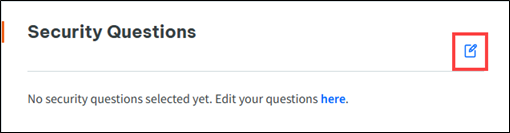
Click the Edit icon or Edit your questions here, on the Security Questions section of the Settings page.
Password reset events are logged to the Login Information Report:
-
When a password reset email is requested after entering a valid User ID and clicking Reset Password
-
User ID, Staff Code, Division Code, Department Number, and status User Password Reset
-
-
When a password reset email is requested after entering an invalid User ID and clicking Reset Password
-
User Password Reset – Invalid User
-
-
When a user attempts to access the reset password workflow using an invalid email link
-
User Password Reset – Invalid Token
-
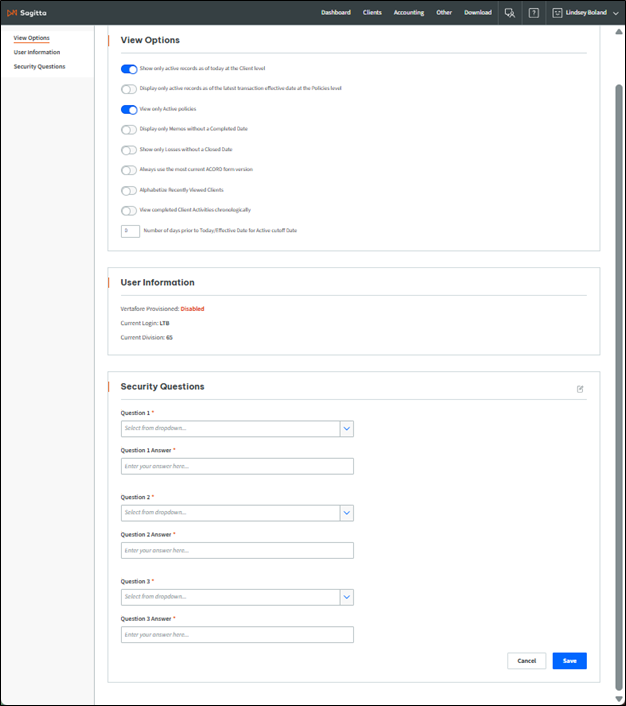
To update security questions, click the Edit button next to the question. Select a new question, or change the answer for an existing question.
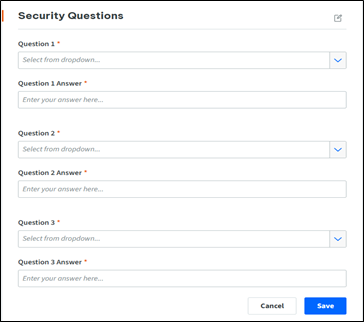
The same validations from the security questions setup process apply; you cannot select the same question more than once, and answers must be a minimum of 3 characters and a maximum of 255 characters.
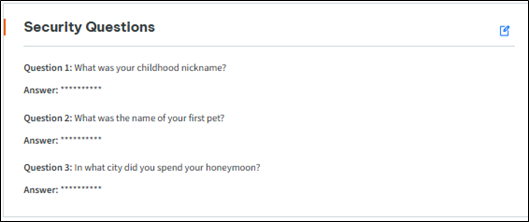
Click Save after editing the security question to save the updates and the page displays the security questions with the answers blocked.
Login Information Report Updates
These password reset events are logged to the Login Information Report:
- When a password reset email is requested after entering a valid User ID and clicking Reset Password
- User ID, Staff Code, Division Code, Department Number, and status User Password Reset
- When a password reset email is requested after entering an invalid User ID and clicking Reset Password
- User Password Reset – Invalid User
- When a user attempts to access the reset password workflow using an invalid email link
- User Password Reset – Invalid Token

Updates to Sagitta Overnight Process
Password Reset changes in the Overnight Process:
- The number of password reset attempts is cleared for all users
- Password reset links are expired and cleared from the database
- Requests for Invalid User ID password reset are cleared from the database