Changing How a Grid Displays
Use the instructions in this topic to make changes to the display of information when they appear on a page in the table format known as "grids."
You can change the wording in the Heading, its field length, and its position within the Grid. You can also make one field the default field for the Search Client Records, or hide a field altogether.
To change a grid, use the Grid View Maintenance Page. You must know the program name for the grid you want to change. If you do not know the program name for the grid, you can perform a search on this page by using a portion of the program name, or by using the grid name.
-
From the Sagitta Home Page, select Other > Personalization > System > Grid Display Maintenance. The Grid Display Maintenance page will appear.
-
At the Display ID field, click the "Search" icon.
-
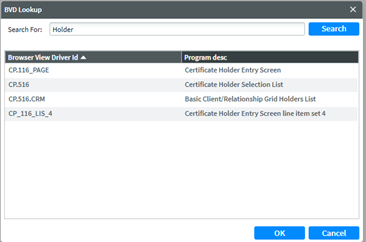
When the BVD Lookup dialog box appears, type all or a portion of the program name or program description in the Search String field, and click "Search" (e.g., "Holders").
New Print Screen
-
A list of one or more items will be displayed on the BVD Lookup dialog.
-
Scroll down the page until you locate the program name for the grid you wish to change. Then, click on the name and follow by clicking "OK."
The grid associated with the program name will appear. This list will include the grid records.
-
Click the record line you wish to change.

You can change the wording of the heading, the field length associated with it, and the location of the heading within the grid. You can also hide a field, or assign one of the fields as the default field in Search Client Records.
-
To change the Heading, click the Heading field to open it and type in the new Heading.
-
If you do want to prevent a heading from being displayed, type HIDDEN in the Heading field.
-
If there is insufficient space to enter the Heading, you may need to change the length of the Heading field to accommodate it.
-
To change the Heading field length, click the Length (Len) field to open it, highlight the entry, and then type the number of characters for the Heading in its place.
-
To change the location of the field in the grid, click the Grid field to open it, and then click either the up arrow or the down arrow until you have positioned the field where it needs to go.
-
To make the column a default one in Search Client Records, highlight the record line and click "Default Search Column," the line above the grid.
-
-
Click Save to record your changes.