Sagitta and Edge
Sagitta version 24R2.1.1000 and above supports the use of the Edge browser for core Sagitta pages. If you use any custom Sagitta pages, please contact your account representative to discuss how to convert those pages so they will be usable within Edge.
Disable Pop-Up Blocker for Vertafore Sites
-
Open the Edge browser.
-
Click the three-dotted icon and select "Settings."
-
Switch to the "Cookies and Site Permissions" tab.
-
Click on "Pop-ups and Redirects."
-
Alternatively, navigate to Edge://settings/content/popups in Edge.
-
-
To allow a specific website, click the "Add" button under "Allow" and enter each of the following sites:
-
[*.]benefitpoint.com
-
[*.]consumerratequote.com
-
[*.]pingone.com
-
[*.]referenceconnect.com
-
[*.]secure.financepro.net
-
[*.]sircon.com
-
[*.]vertafore.com
-
[*.]vertafore-services.com
-
[*.]v4imageright.com
-
[*.]v4-proposal.com
-
[*.]sagitta-online.com (for Sagitta Online)
or
-
[*.]sagittaservername.yourdomain.com (for Sagitta On-Premise)
-
Update Vertafore.Launcher.exe.config to Edge.exe
In a future release, Sagitta will use the default browser to launch certain links with the Vertafore Launcher. Until then, the changes noted below are required for using Edge as opposed to Microsoft Edge for those links. These changes are temporary and will not be needed when the default browser is used instead.

|
NOTE: Future updates to the Vertafore Launcher may remove this personalization and reset it to the default, which is msedge.exe. |
REQUIRED CHANGES TO USE EDGE TO GENERATE CERTIFICATES WITH ASD SERVER
|
|
NOTE: The following steps are necessary ONLY if Certificates or EPIs will be stored on an ASD Server AND the user is generating them from the Edge browser. |
-
Open File Explorer on the workstation and modify the Vertafore.Launcher.exe.config file. Depending on your operating system’s architecture, this will be in the C:\Program Files\Vertafore\Vertafore.Launcher folder for 32-bit OS, or theC:\Program Files (x86)\Vertafore\Vertafore.Launcher folder for 64-bit OS.
-
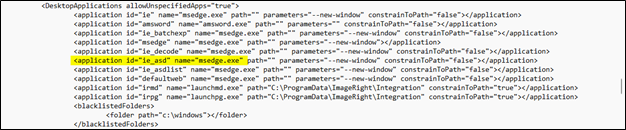
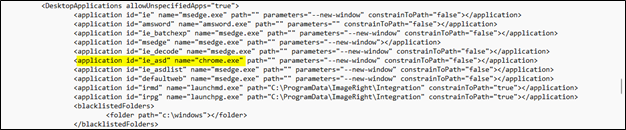
In the configuration file, you will find a section titled “DesktopApplications,” which contains an application ID called “ie_asd.” Browsers are checked for and launched in a window for the browser that is defined in this setting. The default setting launches this window in Edge. To change the default to Edge, update the setting by opening the configuration file (while possessing the appropriate user permissions) and perform the following steps:
Before the change (default setting):
After the change to support in Edge:
-
Save the file.
REQUIRED CHANGES FOR EXTERNAL APPLICATIONS LAUNCHING LINKS TO SAGITTA
|
|
NOTE: These steps are only required if you have built an external application as a Client App in the Client App Registration page, and launch applications using SagittaAPI. |
-
Open the File Explorer on the workstation and modify the Vertafore.Launcher.exe.config file. Depending on your Operating System’s architecture, this will be in the C:\Program Files\Vertafore\Vertafore.Launcher folder for 32-bit OS, or the C:\Program Files (x86)\Vertafore\Vertafore.Launcher folder for 64-bit OS.
-
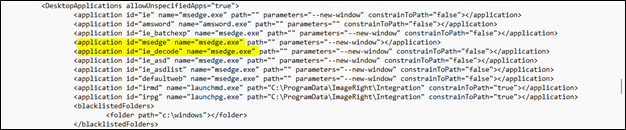
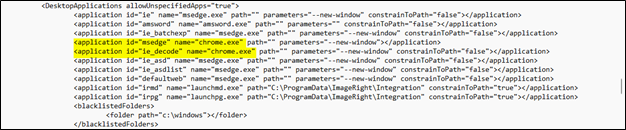
In the configuration file, there will be a section titled “DesktopApplications,” which contains an application ID called “ie_decode.” The browsers are checked for and launched in a window for the browser that is defined in this setting. The default setting for this will be to launch the window in Edge. To change this to Edge, update the setting by opening the configuration file (while possessing the appropriate user permissions) and perform the following steps:
Before the change (default setting):
After the change to support in Edge:
-
Save the file.
Suspending in Edge in a New Tab or a New Window
When you suspend windows in Sagitta in Edge, a new window is launched. To open links in a new tab, Ctrl + Click the link instead.
Clearing the Browsing Data in Edge
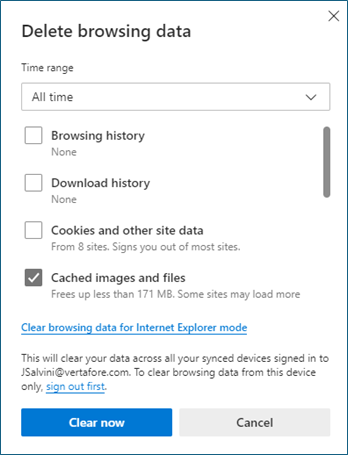
After updating a Sagitta Release, clear the browsing data in Edge by following these steps:
-
In Edge, type Ctrl + Shift + Delete.
-
Check "Cached Images and Files." Uncheck other options to maintain your browsing history and stored log-ins.
-
In the Time Range drop-down menu, choose "All Time."
-
Click "Clear Now."
Set Tab Settings in Internet Options
This setting must be enabled to run Sagitta in Edge
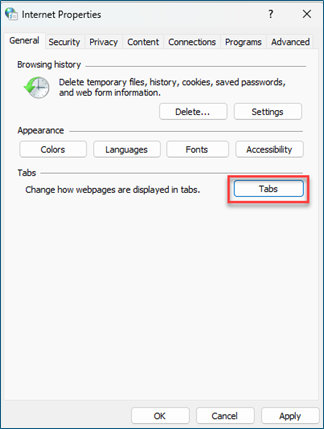
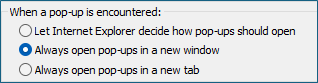
Edge opens pop-up windows — such as the Vertafore eForms viewer — in a new tab in the Home page window. To open these pop-up windows in a new Edge window, set the Tab settings in Internet Explorer to "Always Open Pop-ups in a New Window."
-
Search for Internet Options from the Start Menu.
-
Open "Internet Options."
-
On the General tab, click the "Tabs" button.
-
In the "When a Pop-up is Encountered" section, select "Always Open Pop-ups in a New Window."
Trusted Sites Settings in Internet Options
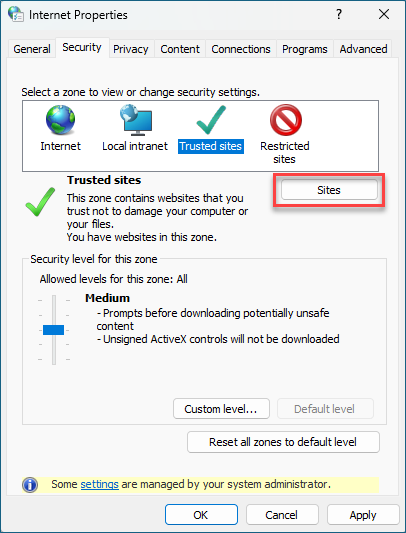
Edge still requires you to configure Trusted Sites to open pages in Sagitta.
-
Search for "Internet Options" from the Start menu.
-
Open "Internet Options."
-
On the Security tab, click the "Trusted Sites" button.
-
Click the "Sites" button
-
Add the following sites to the zone:
*.benefitpoint.com
*.consumerratequote.com
*.pingone.com
*.referenceconnect.com
*.secure.financepro.net
*.sircon.com
*.vertafore.com
*.vertafore-services.com
*.v4imageright.com
*.v4-proposal.com
*.sagitta-online.com (for Sagitta Online)
*.sagittaservername.yourdomain.com (for Sagitta On Premise)
Always Keep These Sites Active
Edge will automatically close out a secondary window when it has been idle for some time.
To prevent this, do the following:
-
Open Edge
-
Click the three dots in the upper right corner
-
Select "Settings"
-
Select "System and Performance"
-
Under Optimize Performance, click "Add" next to Never put these sites to sleep

-
Enter the URL for Sagitta and click "Add."
Issue with Printed Reports [January 2026]
A new Adobe setting — PDF Viewer Flag — is printing an ampersand (&) after the dollar amounts on PDF reports.
To remove the ampersand, disable the flag. NOTE: This issue will be fixed in a future release.
-
Type the following address in your address bar: edge://flags/#edge-new-pdf-viewer
-
Change "New PDF Viewer" from Default or Enabled to Disabled
-
Restart your browser
Differences in Edge vs Edge in IE Mode
-
When selecting Excel in reporting screens, the file will automatically download to the bottom of the browser window. The arrow button can be selected to "Open" or "Save."
-
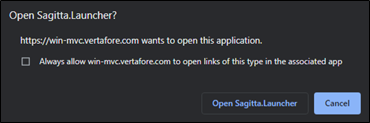
The Vertafore Launcher pop-up is displayed when selecting "Print." This window will display for five seconds to allow for the selection of Opening Vertafore Launcher. To avoid the pop-up at the Print window, the user can select "Always Allow" upon initially logging into Sagitta.
-
Tab and Shift/Tab in "Retrieve Forms" will not navigate in normal order. Instead, click into the desired field.
Direct Interface Match Differences
-
The Direct Interface Match page, used for PL Rating and Producer Plus, will close if you exit Sagitta.
-
After updating transactions on the Direct Interface Match page, a prompt to close will no longer be displayed. Exit the window by closing the tab.
-
When closing the Direct Interface Match page after exporting from PL Rating, the "Leave Site" prompt will not be displayed unless there are unsaved changes.
-
The "Home" icon will no longer be displayed on the Direct Interface Match page.
Downloading AL3 Files
-
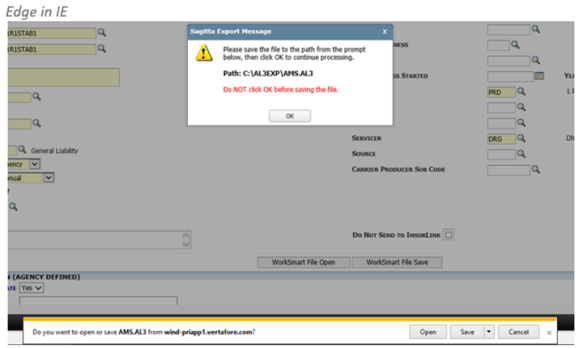
When exporting a policy (AL3 file) to PL Rating or to Producer Plus, the system will no longer prompt to "Open" or "Save" the file.
-
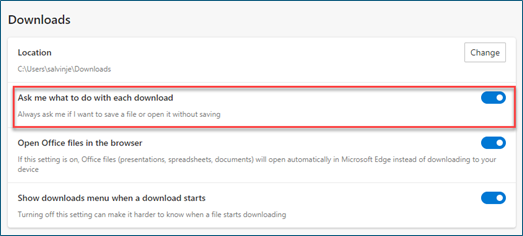
Set the Edge Download setting to "Ask Where to Save Each File Before Downloading."
-
Open Edge
-
Click the three dots in the upper right corner
-
Select "Settings"
-
Click "Downloads"
< Or >
-
For PL Rating and Producer Plus, the user can manually copy the .al3 file from the default download location to those respective paths.

|
This setting will prompt the user for the place to save any downloaded file, including those that are not downloaded from Sagitta. If this setting is not used, all downloads will be saved to the Download folder by default. |
New Toast Messages in Edge
In Edge IE Mode, certain message dialogs — known as Modal windows — would block the user from navigating away without acting on the message. An example of this type of dialog would be if "Options" is open in one page, and the user navigates to a different page.
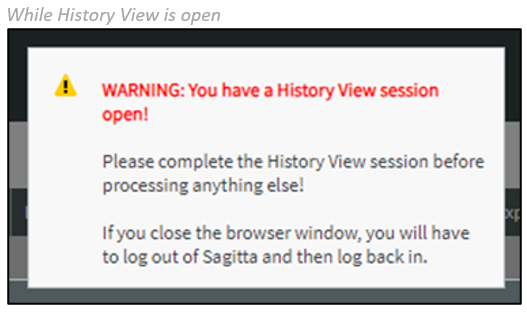
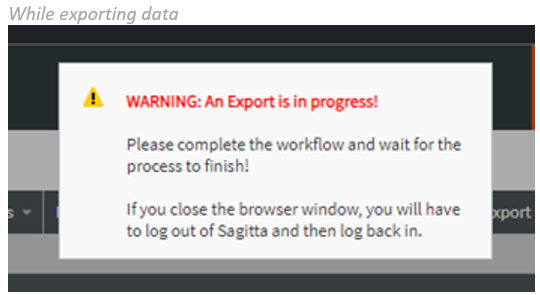
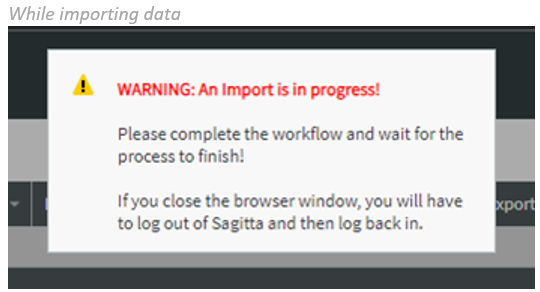
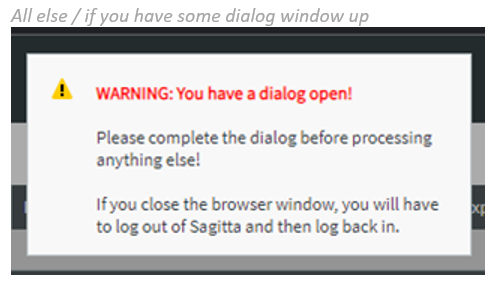
In Edge, the user is not blocked and can navigate to other pages. A new Toast message has been added to notify users when they are directly involved in a work-flow, where navigating away in Sagitta would cause an issue such as the loss of input data, or would require the need to log out of the system and then back in.
Here are some examples of various Toast messages: