Surplus Lines Personalization
Use the instructions on this page to enable Surplus Lines.
Add New Pages
Add new pages to Sagitta using the Role Based Security page (Working with Grids).
|
State Taxes & Fees |
STATE.TAXES.FEES |
Maintenance page used to set up tax/fee details |
|
A.M. Best Ratings Import |
AMBEST.IMPORT |
Page used to run the A.M. Best Import |
Set Accounting Flags
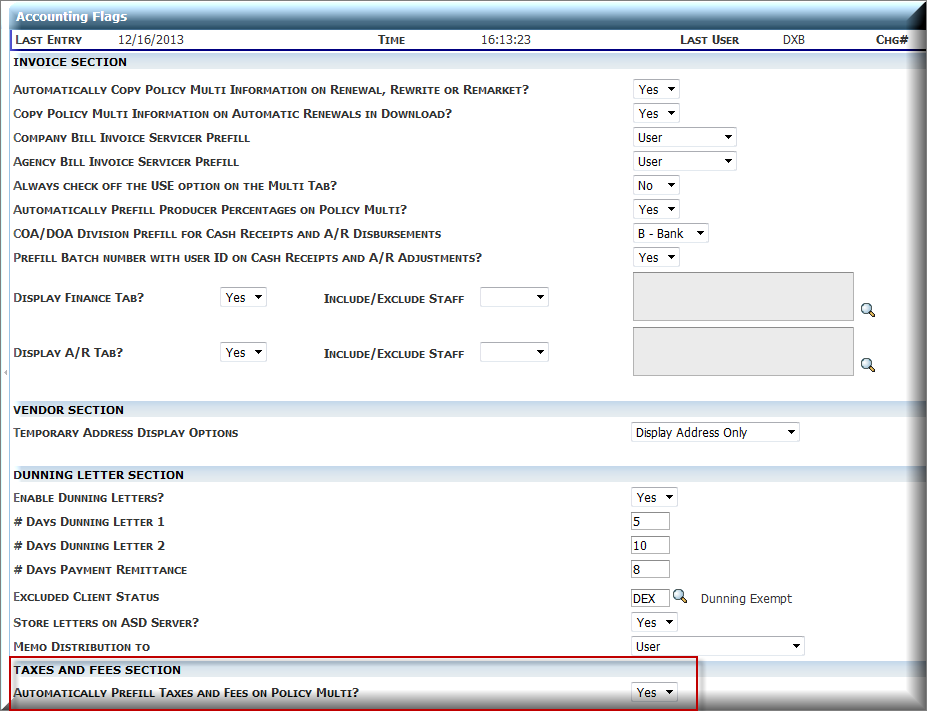
Use the Accounting Flags page to enable pre-fill of taxes and fees during the set up of new policies. To turn on this feature, navigate to Accounting Flags (Other > Personalization) and locate the Taxes and Fees Section at the bottom of the page. Select Yes to the Automatically Prefill Taxes and Fees on Policy Multi question.
Set Payee Codes
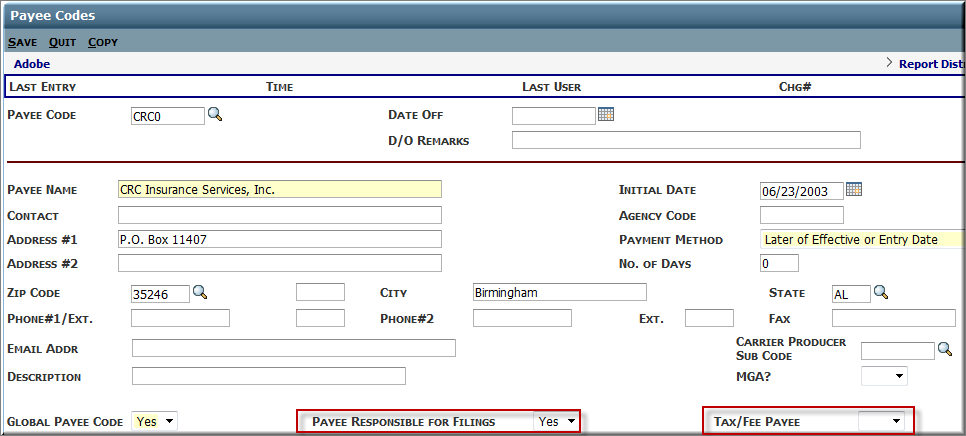
Set the two flags on the Payee Code maintenance page to enable Surplus Lines.
Click the image to change its size.
|
Payee Responsible for Filings? |
Null/Yes/No. Null = No (default) Identifies whether the Payee is responsible for tax filing. When set to No, the agency is responsible for filing. Used during invoicing. Used in the Accounts Payable on File report. |
|
Tax/Fee Payee? |
Null/Yes/No. Null = No (default) Identifies whether this Payee is a Tax or Fee Payee. Used in the Accounts Payable on File report. |
Set Insurer Codes
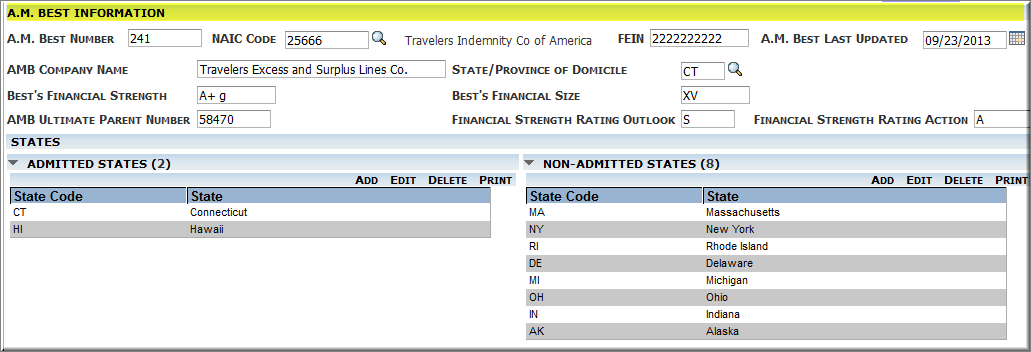
Use the section on the Insurer Codes maintenance page to record A.M. Best Rating information and State Admitted/Non-Admitted status. The information is optional and may be entered manually or you can populate it by importing a spreadsheet provided by A.M. Best Company.
|
A.M. Best Number |
999999, number assigned by A.M. Best |
|
NAIC Code |
XXXXXX, verifies against NAIC.CODES |
|
FEIN |
XXXXXXXXXX, Federal Employer Identification Number |
|
A.M. Best Last Updated |
MM/DD/YYYY, indicates date last updated by A.M. Best Import |
|
AMB Company Name |
Alphanumeric 40 |
|
State/Province of Domicile |
XX, State code |
|
Best’s Financial Strength |
TTTTTT, Financial Strength as provided by A.M Best |
|
Best’s Financial Size |
XXXX, Financial Size as provided by A.M. Best |
|
AMB Ultimate Parent Number |
999999, Parent Number as provided by A.M. Best |
|
Financial Strength Rating Outlook |
X, Rating Outlook as provided by A.M. Best |
|
Financial Strength Rating Action |
XX, Rating Action as provided by A.M. Best |
|
Admitted States |
XX, Grid of data representing state codes for which this carrier is admitted. Verifies against the STATES file. |
|
Non-Admitted States |
XX, Grid of data representing state code for which this carrier is not admitted. Verifies against the STATES file. |
Set State Taxes and Fees
Use this page to enter taxes and fees for surplus line by filing state.
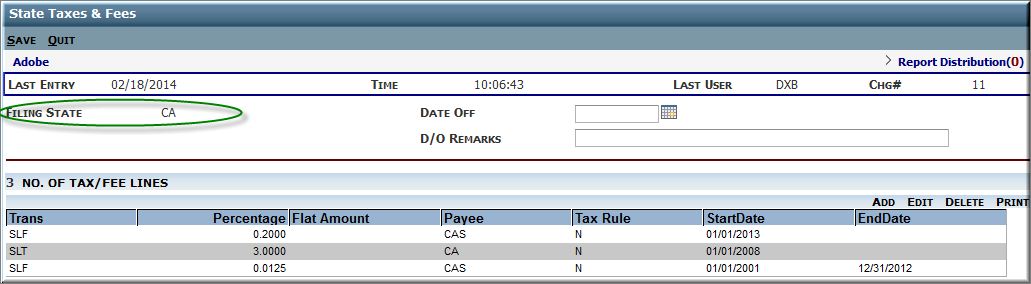
Enter the State code for which you want to add/edit tax and fee information. Create as many lines as necessary.

|
Transaction |
Mandatory; select the Transaction code which represents the tax or fee you are adding. Transaction codes may be created in Transaction Code maintenance. This code will display on the invoice. |
|
Percentage |
Optional; if the Tax or Fee being defined is a Percentage of premium, enter the percentage in this field. Examples: 3% is entered as 3.0000 4.125% is entered as 4.1250 .2% is entered as .2000 Note: For each transaction, either a Percentage OR a Flat Amount must be entered. |
|
Flat Amount |
Optional; if theTax or Fee being defined is a Flat Amount, enter the amount in this field. Example: $25.00 flat fee is entered as 25.00 Note: For each transaction, a Percentage or a Flat Amount must be entered. |
|
Basis |
Mandatory; define whether the Percentage applies to the total Premium amount or the total Taxable amount. Applicable when a Percentage is entered. |
|
Taxable? |
Mandatory; define whether this transaction is taxable. Yes or No. May only equal Yes if the rate Basis = Premium. |
|
Payee |
Mandatory; to whom this tax/fee is payable when the agency is responsible for filing. |
|
Tax Rule |
Mandatory; Non-Admitted, Admitted or All. Define whether this transaction applies to Non-Admitted states, Admitted states or states found in either category. |
|
Rounding |
Mandatory; Nearest Penny or Nearest Dollar. Define the rounding method. Applicable when a Percentage is entered. |
|
Start Date |
Mandatory; Define the date for which this transaction rate/amount is in effect. |
|
End Date |
Optional; Define the date after which this transaction rate/amount expires. |
AM Best Ratings Import Personalization
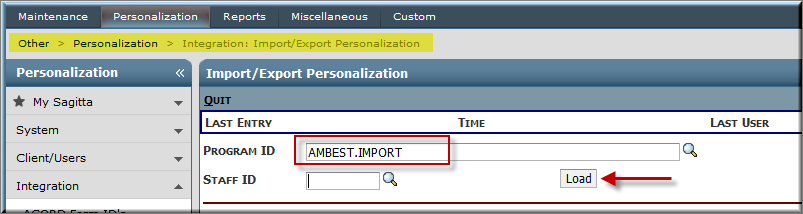
The import process allows the user to update A.M. Best rating information on the insurer’s page in Sagitta with a properly formatted spreadsheet downloaded from A.M. Best Company. The import process uses standard Import/Export Personalization. The loading of the Surplus Lines software pre-fills a default setup. If desired, the system admin may change the initial default directory of where to look for the downloaded file. No other options should be changed. To review the setup, access Import/Export Personalization from the Other, Personalization, Integration menus:
- Enter AMBEST.IMPORT in the Program ID box
- Click the Load button
- The product name used during the import process is AMBESTIMP and can be found in the IMPORT section
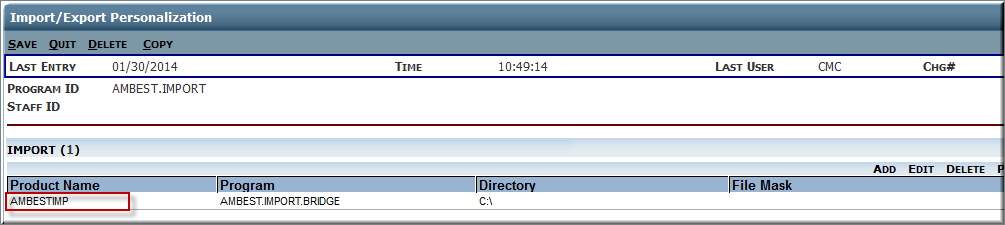
- Double-click on the line to view the contents
Generic Code Maintenance
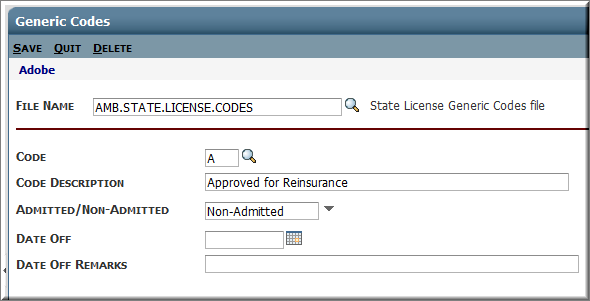
Use the generic code table to define State License codes. The State License codes are sent as part of the A.M. Best spreadsheet and are used by the A.M. Best Ratings Import process to determine whether a state gets placed in the Admitted or Non-Admitted grid for the matching Insurer.
The current values are listed below and come pre-loaded with this software. In the future, if more codes are added by A.M. Best, or if the values of the existing codes change, this file may be edited as needed.
|
A |
Approved for Reinsurance |
Non-admitted |
|
F |
Operates as authorized |
Non-admitted |
|
L |
Licensed |
Admitted |
|
O |
Credit for Reinsurance |
Non-Admitted |
|
R |
Licensed for Reinsurance Only |
Non-Admitted |
|
S |
Approved or not disapproved for Surplus Lines |
Non-Admitted |
To edit the file or to add information to it, access Generic Code Maintenance (Other > Maintenance > Policy). Enter AMB.STATE.LICENSE.CODES in the File Name field. Enter the State License code letter you wish to edit or add.