Administration Center
The Admin Center is the first center in this migration. This element maintains the same experience for system administrators who possess the appropriate level of security rights.
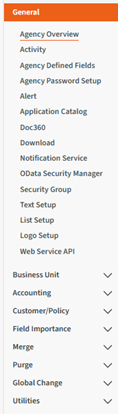
Here is a list of the updated Admin Center sections in the AgencyOne Experience:
General, Business Unit, Accounting, Customer/ Policy, Field Importance, Merge, Purge, Global Change and Utilities.
Each drop-down arrow opens its respective sub-section.
 Enabling the New User Interface: AgencyOne Experience
New Experience Management Page
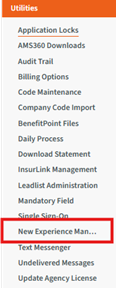
This page can be found in the Admin Center — Utilities section
-
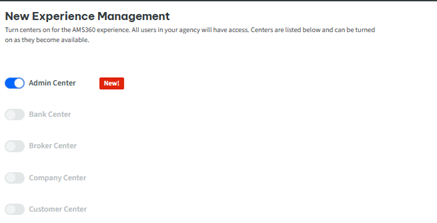
Users who have access to the Admin Center will be able to toggle the new UI experience on and off. The default selection enables the new experience.
-
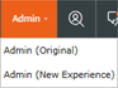
When the experience is toggled ON, individual users can activate either the old or new experience in the Admin Center drop-down menu, found in the top nav bar.
-
If an administrator has toggled the new UI experience OFF, individual uses will not be able to activate the new UI experience.
-
-
These toggles will remain until the legacy version of AMS360 is deprecated (turned off).
-
When that deprecation occurs, the “new UI for each center” will be permanently set to ON and can no longer be toggled off. [NOTE: When enabled, centers labeled "NEW” will allow users to select between new and original experiences, but only for a limited time]
-
-
This page will be released with AMS360 versions 25R2, 26R1 and beyond. Users currently using 25R2, who are already working in the new experience, may need to re-enable this new UI experience.
-
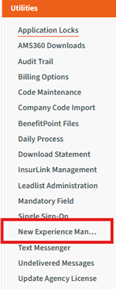
Access to the New Experience Management Page can be found in the Utilities section in both the New Experience and Original / Legacy experience.
Workflow
-
Go to the admin center (New Experience page and Legacy UI will have this option).
-
Go to the left-hand menu and select "Utilities."
-
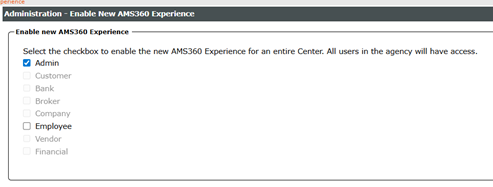
Under Utilities you will see a new option, titled “Enable New AMS360 Experience” or “New Experience Management.”
-
Clicking this option will present the new pages.
-
Any Center that is available will have the toggle for switching back and forth, whereas other centers will be grayed out.
-
Once the Center is turned ON, these changes will take place for your agency.
-
Individual users in the agency will be able to go back and forth between legacy and new experiences
-
If your admin sets the Center to OFF, individual users will be unable to switch back and forth between experiences.
Legacy Experience
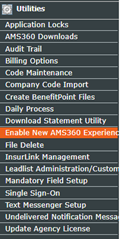
New UI Experience
General Section
-
Agency Overview
-
Edit Agency > Business Unit Assignment for Filtering
-
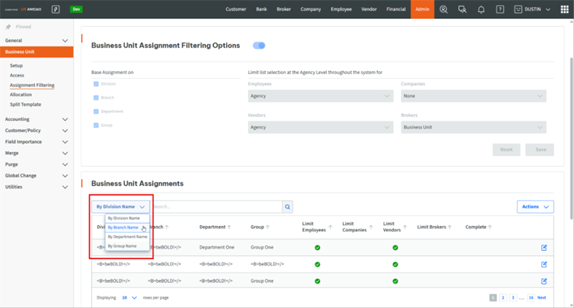
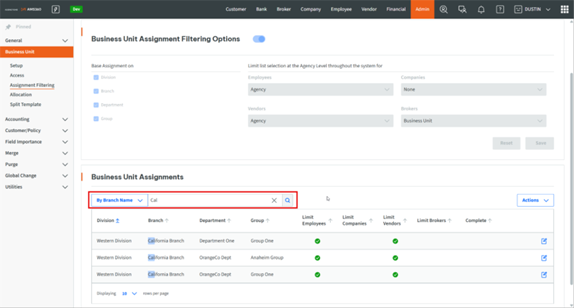
Search by "Name" in Division, Branch, Department, and Group Grid: The Division, Branch, Department, Group Grids now support searching by Name to quickly locate records when managing Business Unit Assignment for Filtering.
-
Search by Division, Branch, Department, or Group Name: Business Unit Assignment for Filtering now supports searching by Business Unit Name to quickly locate records when managing filtering options. The search drop-down menu allows for searching by Division, Branch, Department, or Group.
-
-
-
Activity
-
In the Legacy UI this is “Activity/ Suspense Setup”; in the New UI it will be seen as “Activity” in the left-side navigation menu
-
-
Agency Defined Fields
-
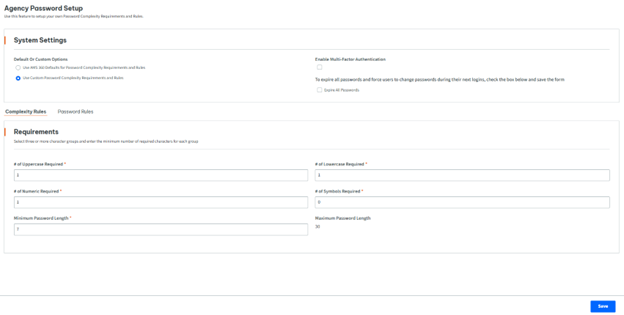
Agency Password Setup
-
Alert
-
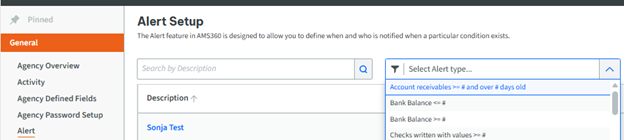
In the Legacy UI this is “Alert Setup”; in the New UI it will be “Alert” in the left-side navigation menu
-
Search by “Description”: Alert now supports searching alerts by Description.
-
Filter by “Alert”: Alert now supports filtering by Alert to narrow your results.
-
-
API Management — AgencyOne Connect
-
Use AMS360 API Management to get the OAuth Client ID for each of the AMS360 instance and provision API permissions to it for WSAPI, EMS, OData
-
How to Configure a New API Client:
-
From the API Management page, select "New" in the upper-right corner
-
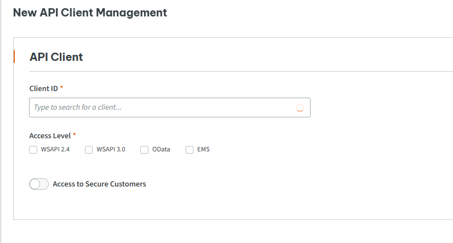
The New API Client Management page will then open
-
Under "API Client," search for and select the Client ID that was created for the integration
-
Under "Access Level," select the APIs this client should be allowed to use:
-
WSAPI 2.4
-
WSAPI 3.0
-
OData
-
EMS
-
-
If the integration should be allowed to access customers that are marked as secure, enable "Access to Secure Customers." Otherwise, leave this option disabled.
-
-
How to Configure Access for the Selected APIs:
-
Complete the sections that correspond to the APIs selected above.
-
WSAPI User
If WSAPI 2.4 or WSAPI 3.0 access is selected, search for and select the WSAPI User the client should use.
-
OData
If OData access is selected, search for and select the Agency Employee that should be associated with the client's OData access.
-
EMS Service User
If EMS access is selected:
-
Select the appropriate Business Unit Access
-
Select the Auth Groups the client to which should have access
-
The Business Unit and Auth Group selections determine which the EMS service user is authorized to access within AMS360.
-
-
-
How to Save the Client
-
Once all required access has been configured, review the selections and save the API client
-
Once saved, the client will appear on the API Management page, where you can confirm Client ID, API Access, Secure Customer Access, and Active status.
-
-
Quick Questions:
-
Admin Center Access? Yes!
-
Minimum required version: 26R2
-
For more information, please see AMS360 Connect
-
-
-
Application Catalogue
-
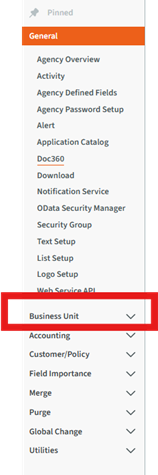
Business Unit Access Setup: This is being moved to its own section within Admin Center
-
Doc360
-
In the Legacy UI, this is “Doc360 Setup”; in the New UI it will be “Doc360” in the left-side navigation menu
-
-
Download
-
In the legacy UI this is “Download Setup”; in the new UI it will be “Download” in the left-side navigation menu
-
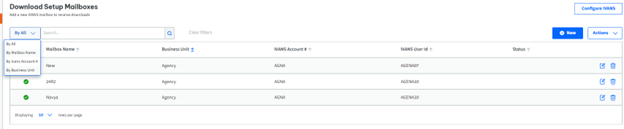
Download Setup: New Search and Filters — Download Setup now supports searching by Mailbox Name, IVANS Account # and Business Unit, and it also supports Filtering by Business Unit.
-
-
Notification Service
-
In the Legacy UI this is “Notification Service Setup”; in the New UI it will be "Notification Service” in the left-side navigation menu
-
-
Odata Security Manager
-
Security Group
-
In the Legacy UI this is “Security Group Setup”; in the New UI it is “Security Group” in the left-side navigation menu
-
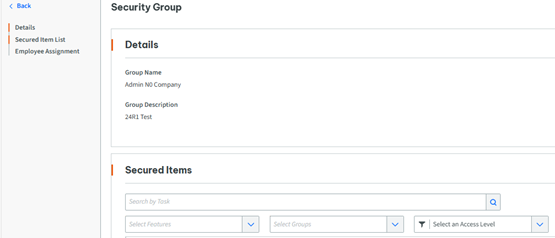
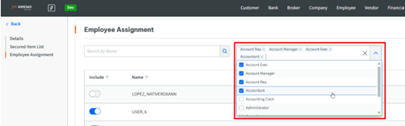
In New or Editing an existing group:
-
Search by "Task" on Secured Item List
-
Search by "Name" Employee Assignment
-
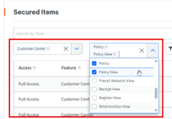
Multi-select Filter by “Feature” and "Group" Secured Item List
-
Multi-select Filter by "Title" on Employee Assignment
-

-
-
Text Setup
-
New Text Setup: "Author" is a now a required field
-
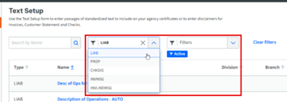
New Search and Filtering Options:
-
Search by "Name"
-
Filter by Type and "Active/Inactive"
-

-
-
List Setup
-
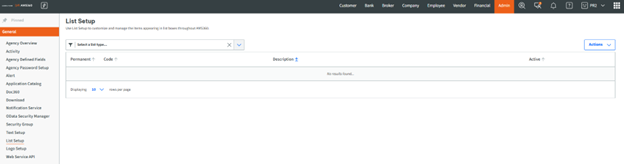
In Legacy AMS360, List Setup was its own section in Admin
-
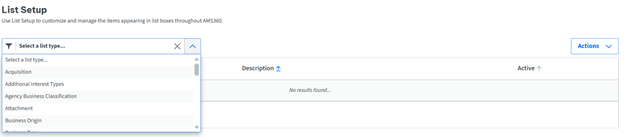
Now, in the new UI, a user will find List Setup in the General section within Admin. All list types will still be available. Once a list type is selected, you can click "New" and be prompted to navigate to the Create Agency Business Classification screen
-
-
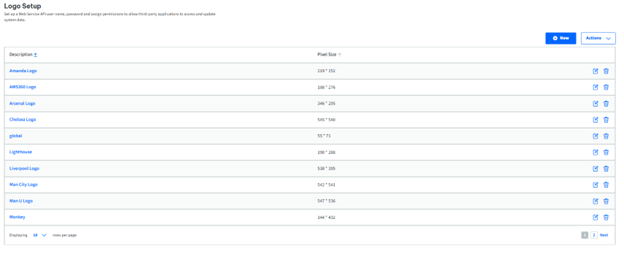
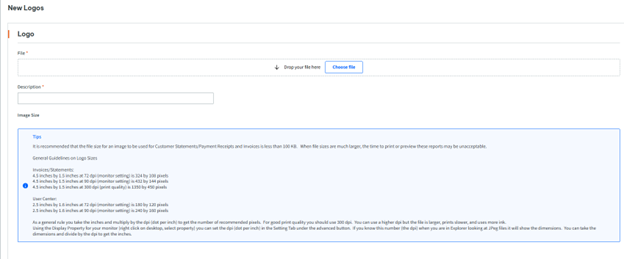
Logo Setup
-
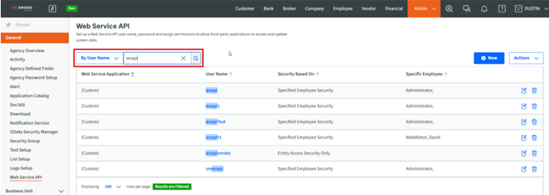
Web Service API
-
Search by User Name and Security Type
-
Type-ahead Search has been added to the User Name Search
-
-
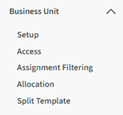
Business Unit Section — NEW
Previously, Business Unit Setup was found listed under the General section. In the new UI experience, Business Unit-related items will appear in a new section.
-
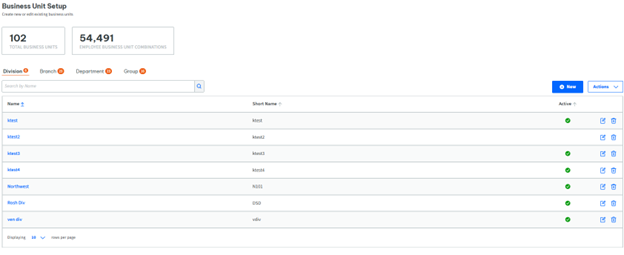
Setup
-
You can see total Business Units and Employee Business Combinations
You can also see totals by Business Unit
-
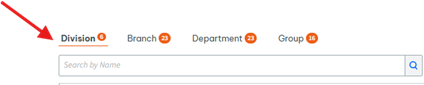
Search by Name will be available for Division, Branch Department and Group
-
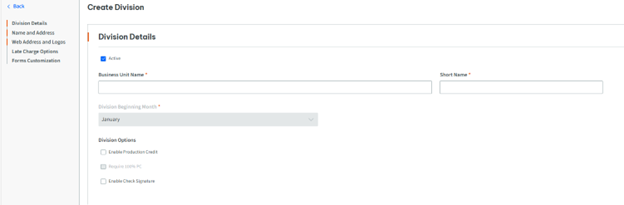
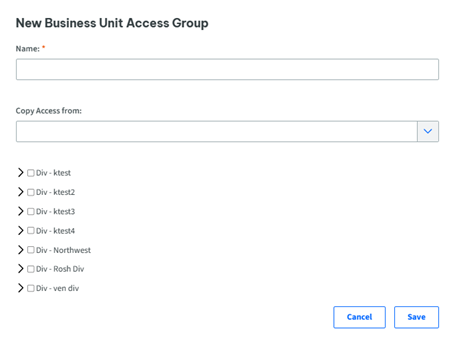
When Searching or Creating a new Business Unit, you will need to select either Division, Branch, Department, or Group
-
-
Access
-
Access/ Business Unit Access Setup mirrors the experience in the Legacy UI
-
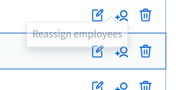
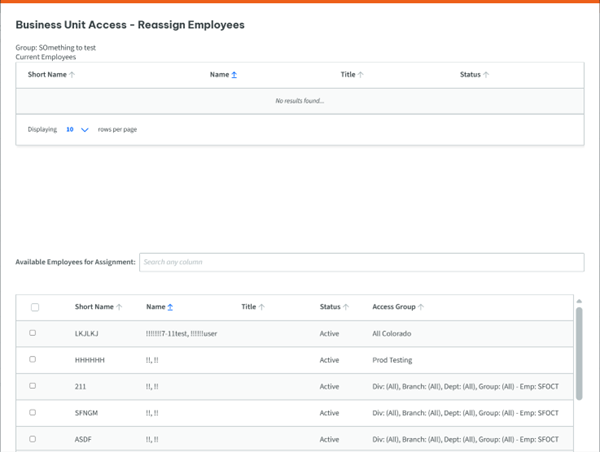
Reassign employee Icon, when clicking, leads you to another pop up page:
-
-
General > Business Unit Access Setup
-
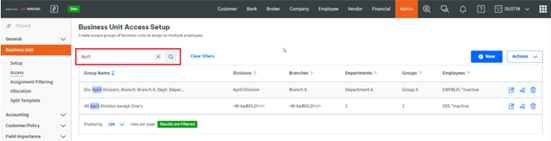
Search by "Group Name" in Business Unit Access Setup
-
-
Assignment Filtering
-
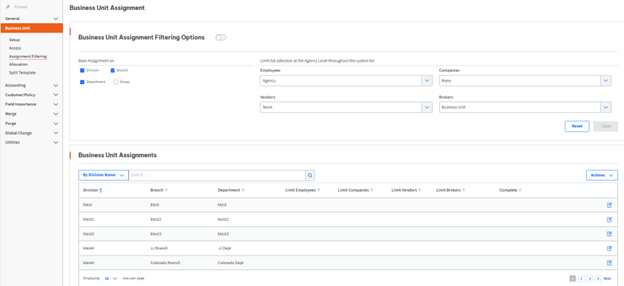
Easier setup for Business Unit filtering options and Assignment
-
Business Unit Assignment for Filtering
-
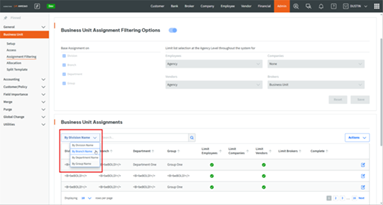
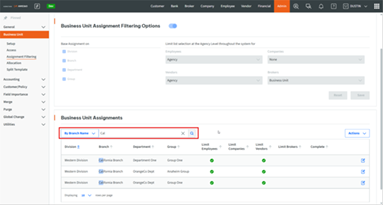
Search by "Name" in Division, Branch, Department, and Group Grid: The Division, Branch, Department, Group Grids now support searching by "Name" to quickly locate records when managing Business Unit Assignment for Filtering.
-
Search by Division, Branch, Department, or Group Name: Business Unit Assignment for Filtering now supports searching by "Business Unit Name" to quickly locate records when managing filtering options. The search drop-down menu allows for searching by Division, Branch, Department, or Group.
-
-
-
Allocation
-
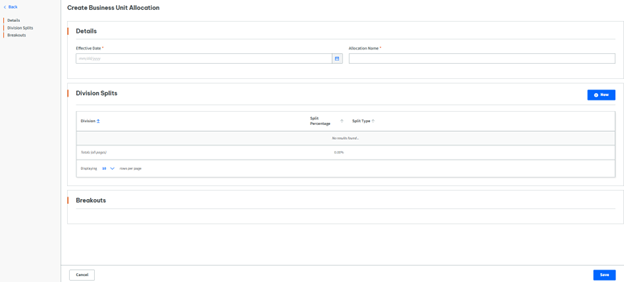
Define expense splits across multiple business units when creating vendor invoices
-
New Create Business Unit Allocation
-
-
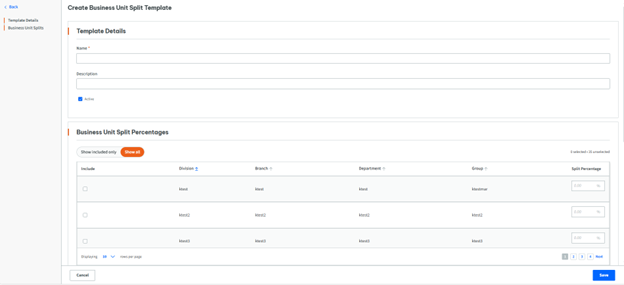
Split Template
-
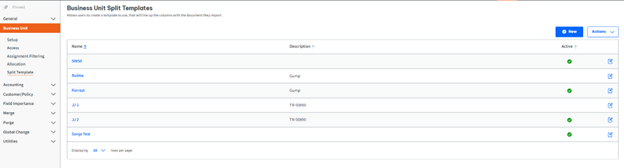
Allows users to create a template that will properly align the columns with the document being imported.
-
New Create Business Unit Split Template
-
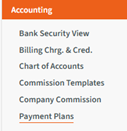
Accounting Section
-
Bank Security View: News search and filter options
-
Search by:
-
Bank Name
-
GL #
-
Division
-
-
Filter By:
-
Access
-
Division
-
Status
-
-
-
Billing Charges and Credits
-
Chart of Accounts: New search and filter options
-
Search by:
-
GL #
-
Description
-
-
Filter by:
-
Type
-
"Active / Inactive"
-
-
-
•Commission Templates
-
Company Commission
-
In the Legacy UI, this is “Company Commission Change”; in the New UI it will be “Company Commission” in the left-side navigation menu
-
There is now a slightly different workflow experience
-
The page opens with the grid of results

-
If you wish to begin an Export or Import, you will need to click one of the buttons on the upper right
-
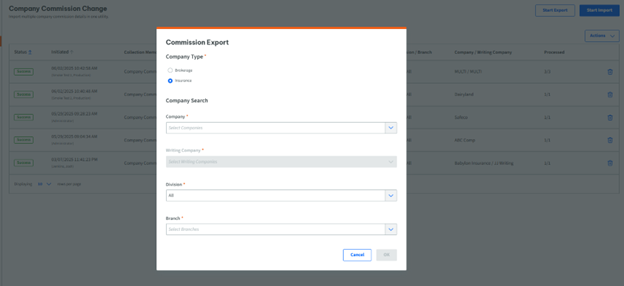
Once one is chosen, you will begin the selections process
-
-
-
Payment Plans
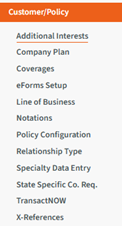
Customer / Policy Section
-
Additional Interests
-
Company Plan
-
In the Legacy UI this is “Company Plan Setup”; in the New UI it will be seen as “Company Plan” in the left-side navigation menu
-
-
Coverages
-
eForms Setup
-
Check-boxes have become toggles
-
-
Line of Business: New search and filter options
-
Search by:
-
Description
-
-
Filter by:
-
Type of Business
-
"Active / Inactive"
-
-
-
Notations
-
Policy Configuration
-
Relationship Type
-
In the Legacy UI this is “Relationship Type Setup”; in the New UI it will be “Relationship Type” in the left-side navigation menu
-
-
Specialty Data Entry
-
System Data Entry Name and Code are no longer required
-
-
State-Specific Requirements
-
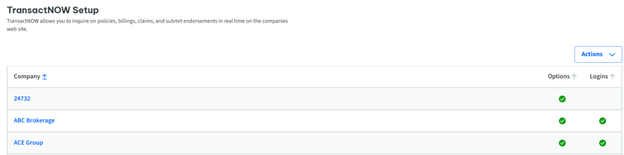
TransactNOW Setup
-
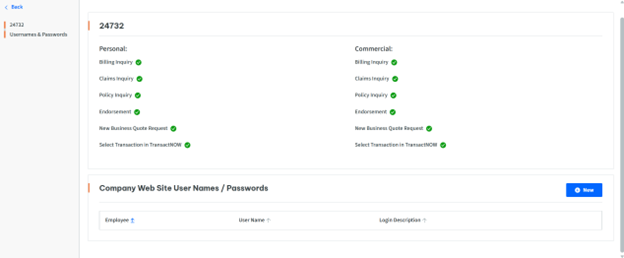
Different Workflow:
-
In Legacy AMS360, a user would click on the Company in the grid, click "View," and then see different options and selections, plus the ability to add and edit a company website's user names / passwords.
-
In the new UI, a user must select the Company, after which the user will be able to review the options and edit or create a new company website's user names / passwords
-
-
-
X References
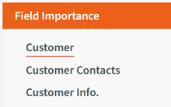
Field Importance Setup
-
Customer
-
In the Legacy UI this is “Customer Setup Fields”; in the New UI it will be “Customer” in the left-side navigation menu
-
-
Customer Contacts
-
In the Legacy UI this is “Customer Contacts Fields”; in the New UI it will be “Customer Contacts” in the left-side navigation menu
-
-
Customer info
-
In the Legacy UI this is “Additional Customer Info Fields”; in the New UI it will be "Customer Contacts” in the left-side navigation menu
-
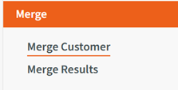
Merge Section
-
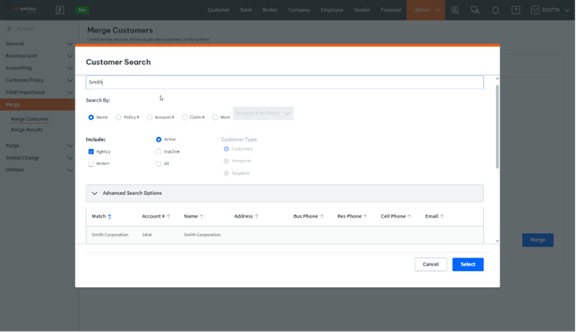
Merge Customer
-
Type-ahead search for "From" and "To"
Type-ahead search has been added to the "From" and "To" drop-down menus in Merge
Customer
-
-
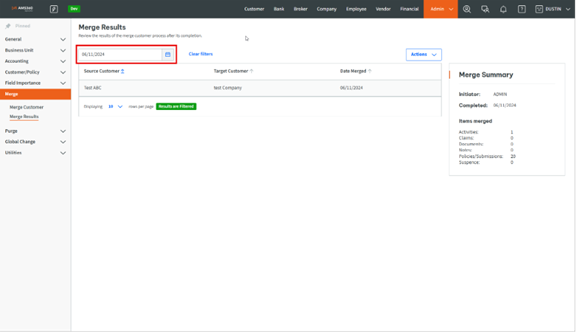
Merge Results
-
Type-ahead search for "Date Merged”
Type-ahead search has been added to the "Date Merged: drop-down menu in Merge Results.
-
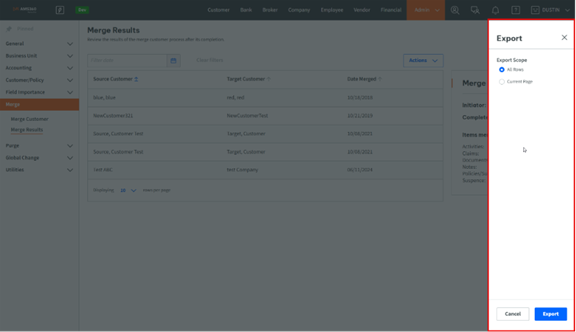
Add ability to Export Grid
-
-
Merge Results now supports exporting the grid for review or record-keeping.
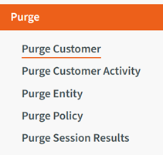
Purge Section
-
Purge Customer
-
Purge Customer Activity
-
Purge Entity
-
Purge Policy
-
Workflow update: Once you make the “Division” and “Fiscal Year” selections, there is no need to click “Search Policies”
Results will begin to populate once selections have been made
-
-
Purge Session Results
Global Change Section
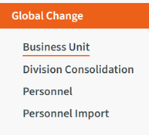
All sub-sections under Global Change have been shortened so that “Global Change” is no longer at the front of each sub-section name
-
Business Unit
-
Division Consolidation
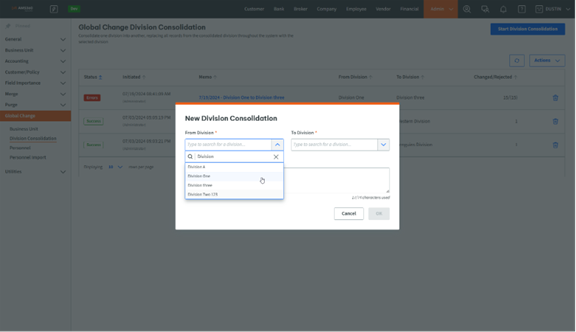
-
Type-ahead search for "From" and "To"
Type-ahead search has been added to the "From" and "To" drop-down menus in Global Change Division Consolidation.
-
-
Personnel
-
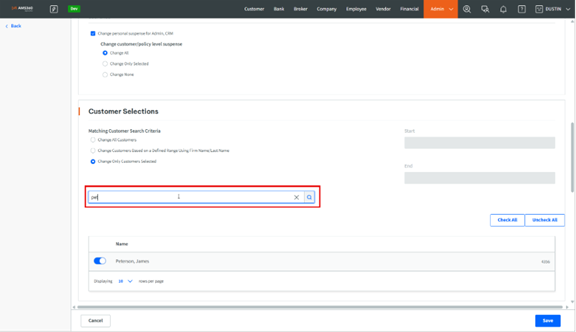
Search by "Customer Name," once results are returned
Search by Customer Name is available once results are returned in Global Change for Personnel.
-
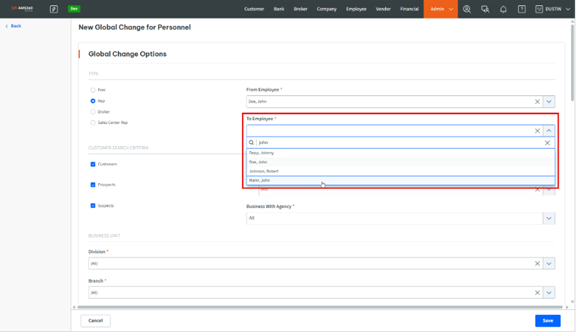
Type-ahead search for Employee, Broker, Division, Department, Branch, and Group
Type-ahead search has been added to multiple drop-down menus to improve usability with long lists.
-
-
Personnel Import
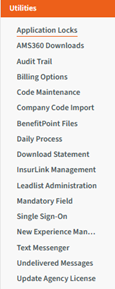
Utilities Section
-
Application Locks
-
Search by “User Name”
-
Search by "Description"
-
Search by "Workstation Name"
-
Search by "All" of the above
-
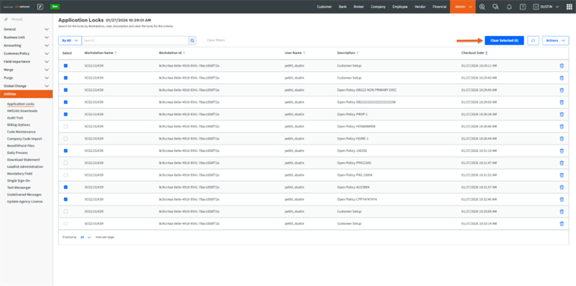
Multi-Select and “Clear Selected” Action
-
Users can now select multiple application locks by using check-boxes and clearing only those they select.
-
The "Clear Selected" button will display the number of locks selected
-
This improvement reduces the risk of unintentionally clearing locks.
-
Users can still clear all active locks at once, based on current search results, without manual selection.
-
Users can still clear single locks by using the corresponding "Delete: icon.
-
-
-
AMS360 Downloads
-
Audit Trail
-
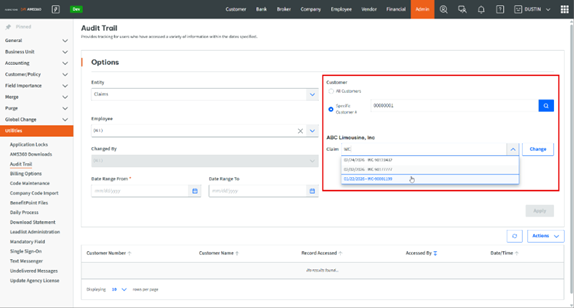
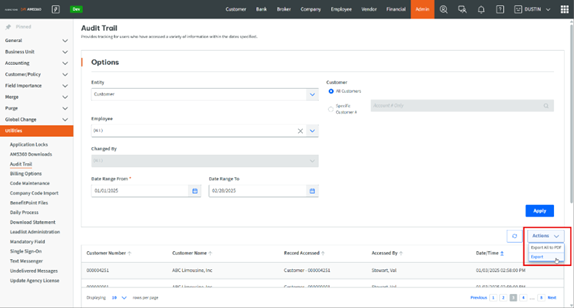
Type-ahead search for Specific Customer, Customer, and Claims
Type-ahead search has been added to Policy and Claim drop down menus in "Audit Trail." when searching by Specific Customer Number.
-
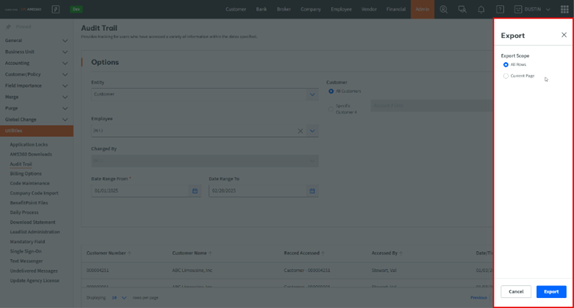
Ability to Export Grid
Audit Trail now supports .csv export based on current filters for both the current page and all records.
-
-
Billing Options
-
Code Maintenance
-
Workflow Change: Users must click “Edit” to see the “Process/ Retain Merge” button
-
-
Company Code Import
-
BenefitPoint Files
-
Previously in the Legacy UI, this can be seen as Create BenefitPoint Files. In the New UI it will be seen as BenefitPoint Files in the left-side navigation menu
-
-
Daily Process
-
Download Statement Utility
-
Workflow Change: Users must click “Create Direct Bill Entry” button to be prompted for the rest of the workflow
-
-
Insurlink Management: No change; brings you to Insurlink
-
Leadlist Administration / Customer Import
-
Workflow Change:
-
The Leadlist Administration / Customer Import sub-section will open to the templates grid. You can edit and delete from the grid
-
Clicking “Import Leadlist” on the upper right will allow for the original workflow
-
Clicking “Leadlist Maintenance” will display a grid with the lead-list import name and status
-
Clicking “New” will allow for you to create a new template
-
-
-
Mandatory Field
-
Previously in the Legacy UI, this can be seen as Mandatory Field Setup. In the New UI it will be seen as Mandatory Field in the left-side navigation menu
-
-
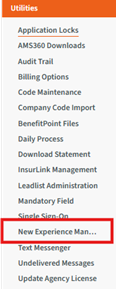
New Experience Management Page – NEW!
-
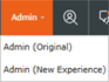
Users who have access to the Admin center will be able to toggle the new UI experience on and off. The default setting enables the new experience
-
When the experience is toggled ON, individual users may switch between the old and new experience in the Admin Center drop-down in the top nav bar
-
If admin has toggled the new UI experience OFF, individual uses will be unable to access the new UI experience
-
These toggles will remain until the legacy version of AMS360 is deprecated (turned off).
-
When this deprecation occurs, the “new UI for each center” will be permanently set to “ON” and can no longer be toggled off. (When enabled, centers labeled "NEW” will allow users to select between new and original experiences; this is during a limited time period)
-
This page will be released with 25R2, 26R1 and beyond. Users who have 25R2 and are already working in the new experience may need to re-enable the new UI experience.
-
-
Single Sign-On
-
Type-ahead search
-
-
Text Messenger
-
In the Legacy UI this can be seen as “Text Messenger Setup”; in the New UI it is “Text Messenger” in the left-side navigation menu
-
-
Undelivered Messages
-
In the Legacy UI this is “Undelivered Notification Messages”; in the New UI it is “Undelivered Messages” in the left-side navigation menu
-
-
Update Agency License