Top Navigation Bar

|
Note: This update represents only a portion of the AMS360 24R2 release. Please navigate to AMS360 2024 R2 Release Notes to review other enhancements and fixes that were part of this release. |
In all previous releases, the AMS360 top navigation bar had a traditional look and user experience. The NEW top navigation bar is slimmer and more modern. It feels the same but better, with the same functionality as before, but much more. All Vertafore products will share this new look and feel.
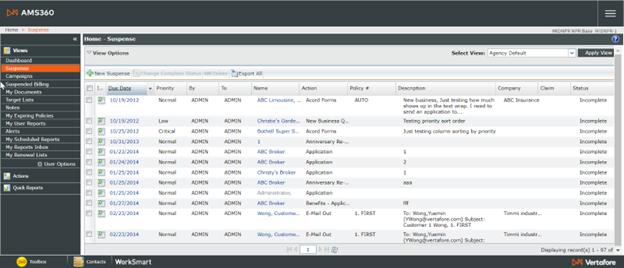
Current Top Navigation Bar (from AMS360 24R1)

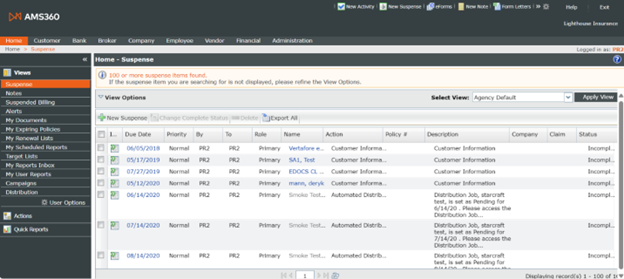
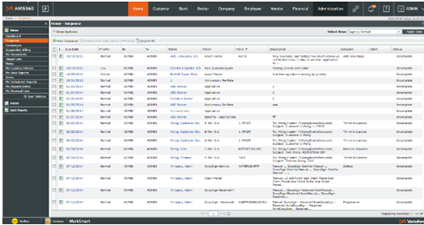
NEW Top Navigation Bar (from AMS360 24R2)

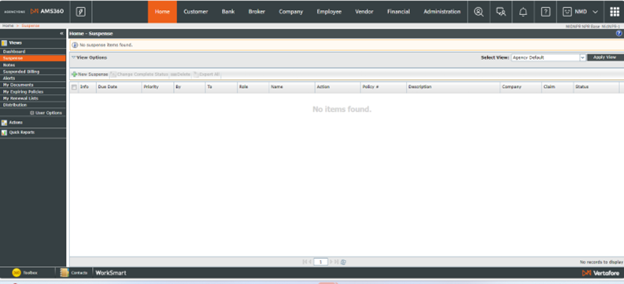
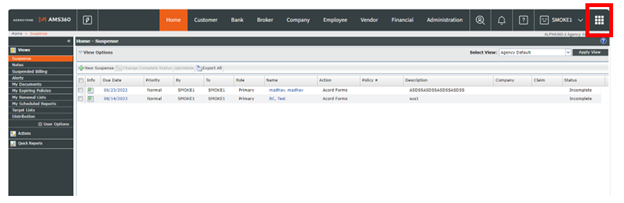
NEW TOP Navigation Bar- Updated Centers (from AMS360 25R2)

To reduce the width of the top navigation bar and therefore keep the user from constantly using the drop-down menu, we have removed Home and Shortened Administration center. All other aspects of the top navigation bar remain the same
Additional changes:
-
Removed the home center: Users now need to click on the logo in the upper left-hand corner to navigate home.
-
Whether the user is an AgencyOne user or not, clicking on the logo will navigate them to AMS360 Home
-
Reduced ADMINISTRATION center to ADMIN center
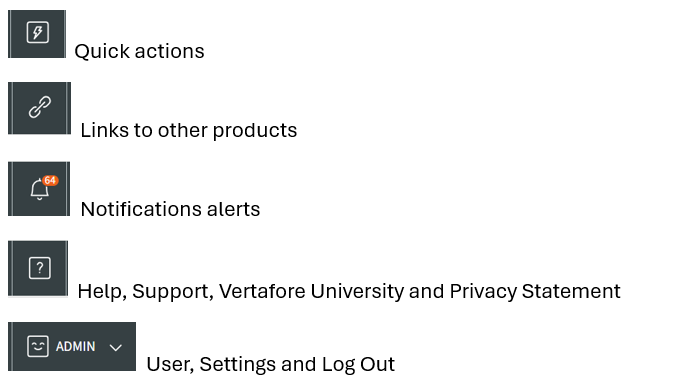
Buttons, from left to right:
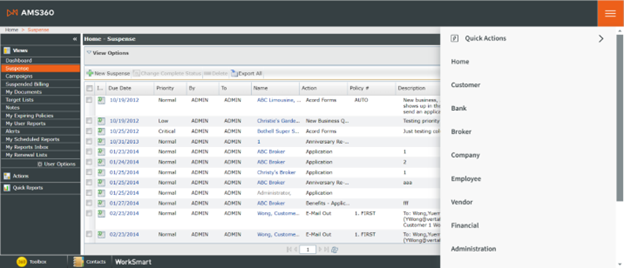
If the screen size is reduced, the home screen will open where all centers and other links can be found in the Hamburger drop-down menu (defined as the c). This also takes place when the screen size is too small or the font is too large to fit all the buttons on-screen.
The screenshot below shows the Hamburger drop-down menu in its "open" position. A caret (>) to the right, as seen where "Quick Actions" is listed, indicates a sliding drawer will open to display a sub-menu.
When you log in as an AMS360 user, the Top Navigation Bar will look like this if your default start page is Home, Suspense for example. Changes are limited to the white bar that has the Agency on the far right and the black Top Navigation bar above it. Everything below the white bar remains unchanged.
The new buttons are as follows:
-
Next to the AMS360 logo is the Quick Nav button (lightning bolt). You can select the most often-used actions in the drop-down menu.
-
All the Center buttons are next. Select the button to be taken to that center, or else right-click and select "Open in a New Tab" to open the center in a new tab.
-
Next is the Links button, where you can open other products that your credentials allow.
-
The Bell icon represents the Notifications button. The number of unread notifications is displayed.
-
The “?” icon is the Help button, and you can select Help, Support, Vertafore University, or the Privacy Statement.
-
The face icon is the User button with Settings and Log Out options.
Hamburger vs Center Visibility
The Global Navigation bar is designed to give users an improved experience when working with Vertafore products.
Your screen resolution, screen-scale size, and text size will affect whether all the centers (top navigation bar categories) are shown, or if the Hamburger (the three lines found in the upper right-hand corner) is shown in place of the centers.
Screen Resolution
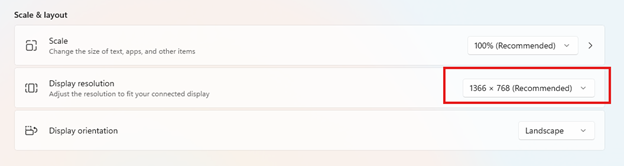
Your resolution can vary from screen to screen, but unless your video monitor is optimally set to 1920 x 1080 resolution, the Hamburger will not appear.
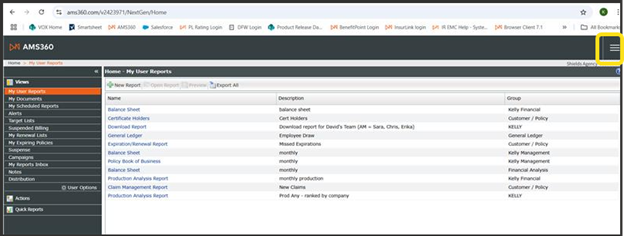
The Hamburger will appear at this resolution, as it is the “recommended” resolution for this screen.
Screen Scale
If your screen scale is set to anything above 100 percent, the Hamburger will show in place of the centers.
Text Size
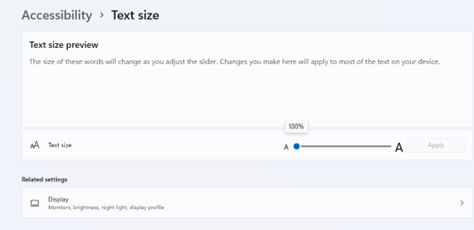
If your text size is greater than 100 percent, this setting will increase the font in the centers and it transforms into the Hamburger view.