Sagitta 21R2.1.0 Release Notes
Vertafore is pleased to release Sagitta 2021 R2.1.0. With this release, we are incrementally improving and updating Sagitta to provide you with the best possible experience.
 Major Enhancements
|
Enhancement |
Description |
|---|---|
|
Sagitta Modernization |
The UI appearance is refreshed, with continued efforts toward browser agnosticism. |
|
Broker Option in Vendors |
A new option is available to allow for the running of some reports for Brokers only. |
|
Check Printing |
A new option is available that defers the printing of checks until a later point in the process. |
|
Single Sign-On for Sagitta Online |
Sagitta Online users can now sign in just once to access Sagitta and some additional Vertafore products |
| WorkSmart Browser Version 7 Support |
Sagitta now supports the WorkSmart Browser. |
| File Transfer Protocol Changed to SFTP | All uses of FTP in Sagitta have been updated to use SFTP. |
| Signatures |
Some Sagitta forms have been updated to use image-based signatures. |
| Client Code Security |
A new page has been added that limits access to certain Clients to specific staffmembers. |
| Staff Security Department |
A new page has been added that allows users to specify access to clients in Sagitta by department. |
| User-Defined Data | Additional fields can be added to Bank Codes. |
System Requirements
For information about recommended and supported system configurations for all Vertafore products, see the Supported Configuration Matrix (DOC822 on My Vertafore). You must be registered with My Vertafore and signed in to access this document.
For optimal performance of the application, we recommend the following as a minimal workstation configuration:
| Hardware/Software | Minimum Requirement/Recommendation |
| Processor/CPU Speed |
Recommended: i5, i7, or Multi-core: 2.6 GHz or above Minimum: Core 2 Duo: 2.3 GHz or above Not Supported: Single Core, Reduced-feature CPUs such as Celeron or AMD Sempron |
| Memory |
Recommended: 16 GB Minimum: 4 GB |
| Hard Drive Space | Minimum: 150Mb of local disc space per user. |
| Operating System |
Recommended: Windows 10 (64 bit) Minimum: Windows 7 (32 bit) |
| Microsoft Office (Word, Excel) |
Recommended: Office 2016 Professional Minimum: Office 2010 Professional |
| Internet Explorer |
Recommended: Edge in IE mode Supported: Edge in IE Mode, Internet Explorer v11 Minimum: Internet Explorer v11 |
| .NET Framework | Minimum: .NET 4.7.2 |
Server Configuration
Web Application and Web Services
Vertafore recommends that the Application and Web Services Server are configured for SSL/TLS to ensure that potentially sensitive information is being encrypted. Accessing the server over HTTP is a poor security practice, regardless whether the server is exposed or not. For more information to configure SSL/TLS, please refer to the Sagitta Help topic How To Configure SSL and TLS.
Browser Support
While we continue to support Internet Explorer 11, Vertafore recommends you transition to Edge in IE Mode, since Microsoft is no longer supporting Internet Explorer as of June 2022.
For additional details for using Sagitta in Edge IE Mode, please see the help article Sagitta and Microsoft Edge.
Feedback
We value your feedback to ensure we are working on what is most important to you. Please use My Vertafore to provide feedback. We appreciate your input, whether positive or negative, on any visible change.
Sagitta Modernization
USER INTERFACE REFRESH
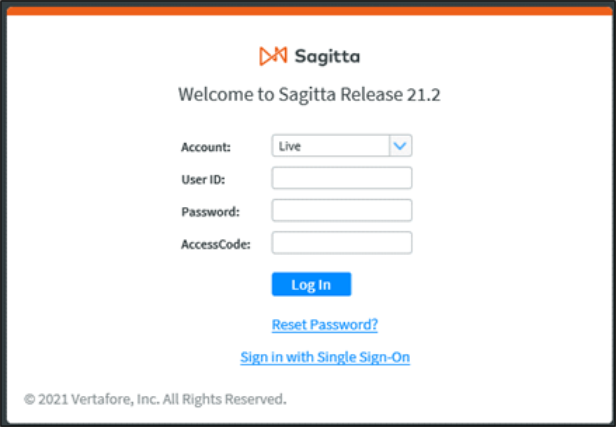
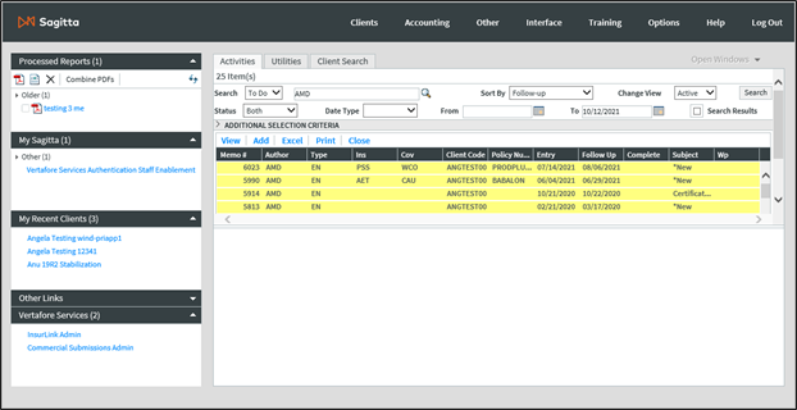
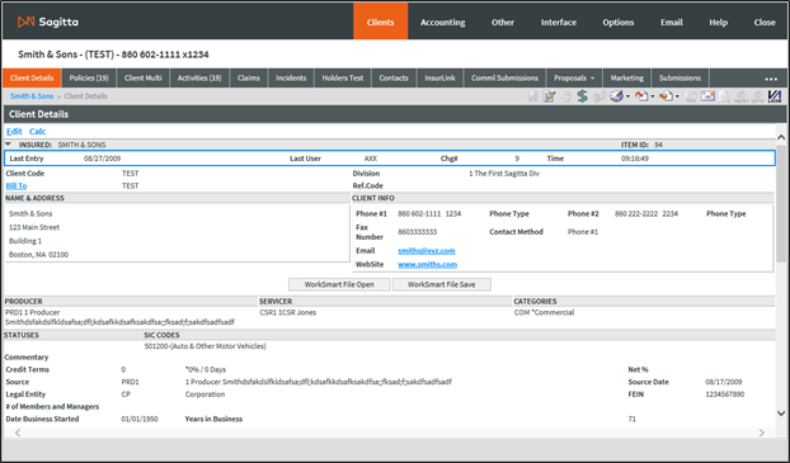
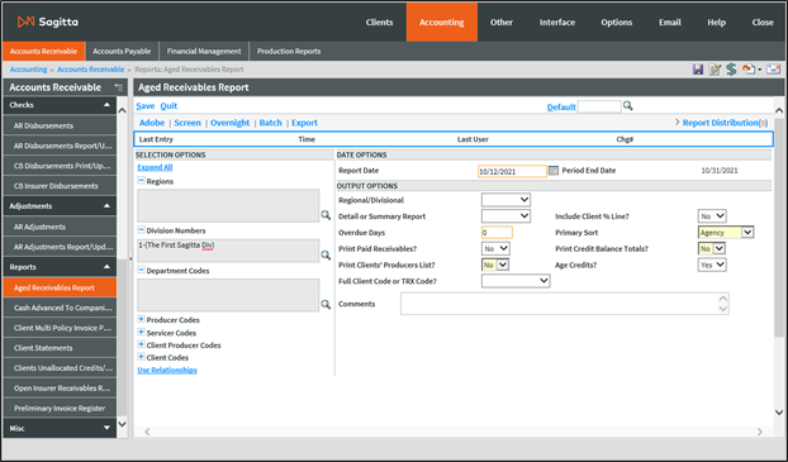
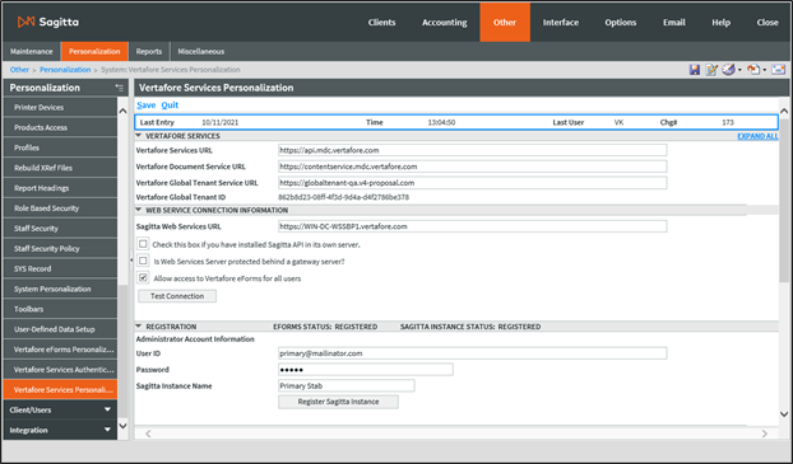
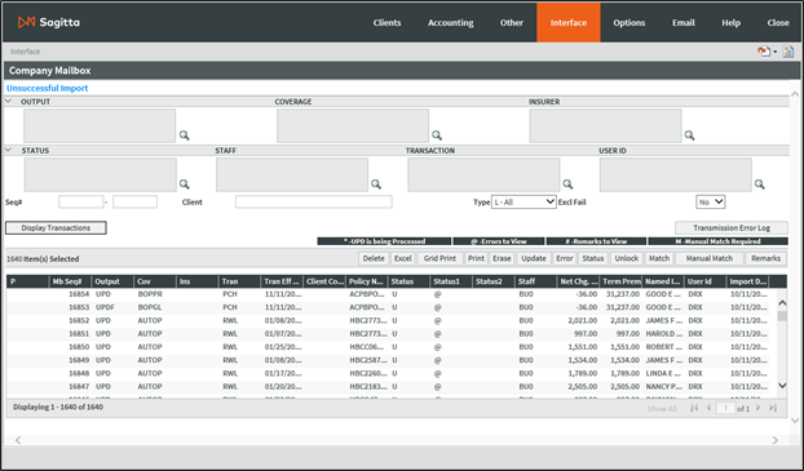
This release includes many changes in appearance to the Sagitta user interface, which has been designed to be more modern and consistent with other Vertafore products. Many pages have been updated to achieve this; however, all pages should behave the same, but with a "refreshed" look.
Sagitta Login Page:
Sagitta Home Page:
Client Details Page:
Aged Receivables Report Page:
Vertafore Services Personalization Page:
Company Mailbox Page:
VBSCRIPT REMOVAL ON SAGITTA PAGES
As part of our ongoing effort to allow Sagitta to be browser-agnostic, the actions to convert VBScript to JavaScript on Sagitta pages are continued in this release. With this process, there are no workflows that have been changed or removed. We will continue this effort until all pages have been converted and Sagitta is declared browser-agnostic.
Accounting Changes
BROKER OPTION ON VENDOR CODES
Users will find a new drop-down option, "Broker?," on Vendor Codes =.
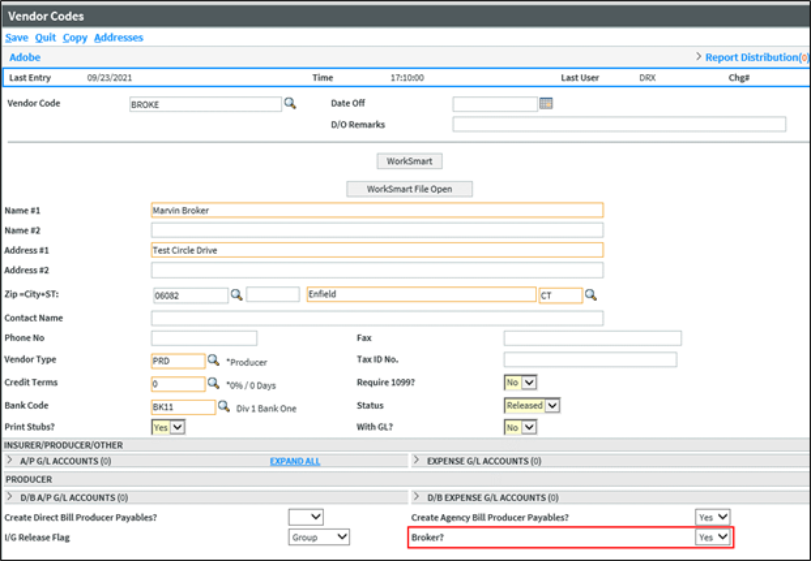
This is a non-mandatory field that has these options: Blank (default value), Yes, or No.
The Broker? drop-down can only be used for a Vendor Code that is a Producer, indicated by a PRD Vendor Type. If the Broker? drop-down is used for a Vendor with a Vendor Type other than PRD, the field will be highlighted by an error message. [NOTE: This field is not available for XXX Vendor types.]

Run Reports with Broker Option
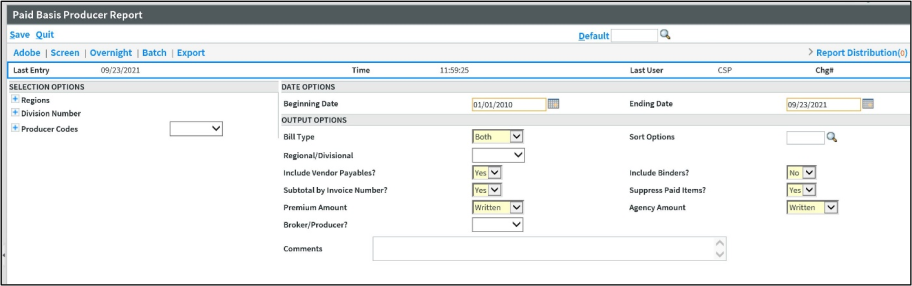
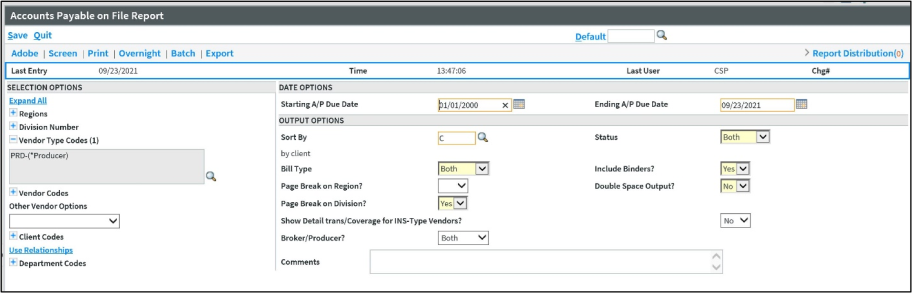
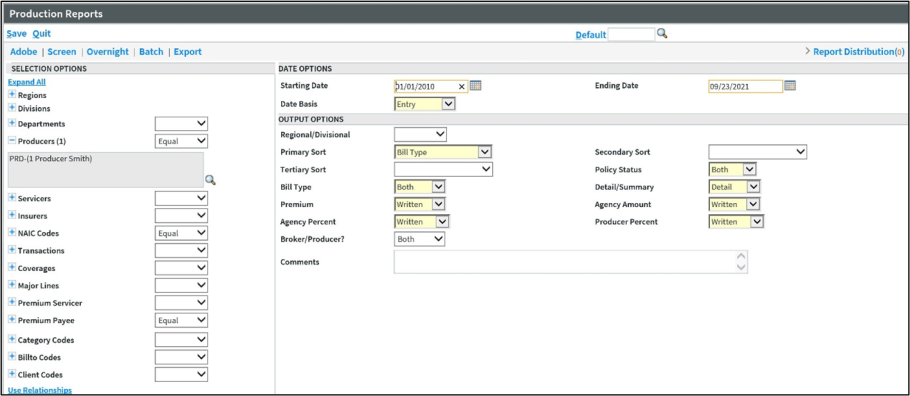
The new Broker? field on the Vendors page allows for special filtering features on the Paid Basis Producer Report, Accounts Payable on File Report and Production Report. Each of these reports has a new drop-down field, Broker/Producer?, with the following options: Blank (default), Broker, Producer, and Both.
-
When the Broker/Producer? field is set to Broker, the report will include PRD-type vendors that have the Broker? drop-down set to Yes.
-
When the Broker/Producer? field is set to Producer, the report will include PRD-type vendors that have the Broker? drop-down set to No or Blank.
-
When the Broker/Producer? field is set to Blank or Both, the report will include all PRD-type vendors.
New Dictionaries and SQL Dictionaries for Vendors
| Sagitta File | Field | Attribute Dictionaries | Synonym Dictionaries | ODBC SQL Dictionaries |
| VENDORS | Broker? | 42 | BROKER | BROKER |
CHECK PRINTING
Suppress Check Printing
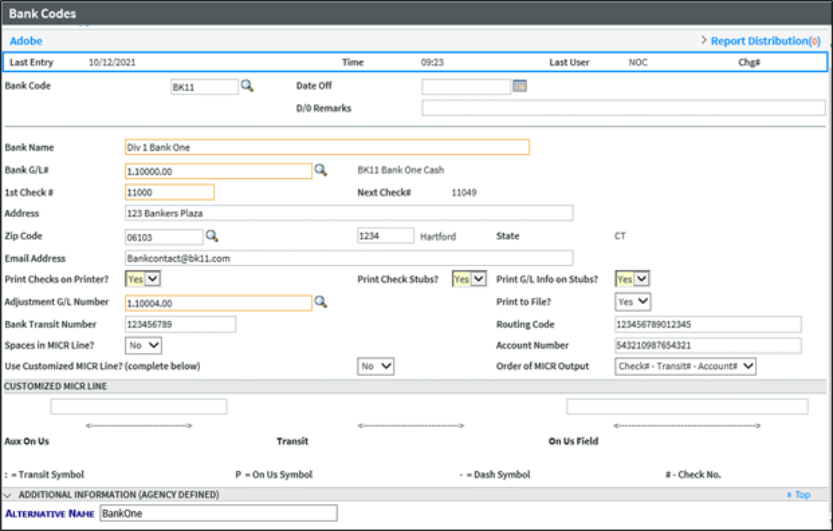
A new field, Print to File?, has been added to the Bank Codes page. Choose the Yes option in the Print to File? drop-down to suppress the prompts to print the PDF, or to print directly to the printer when printing checks, check vouchers, and check reports. Even though these prompts are suppressed, the check is created in Sagitta, and general ledger accounts are affected, as usual. The list of checks to be printed is created via a Report Builder statement, and output from the statement is sent to the party that will print the checks.
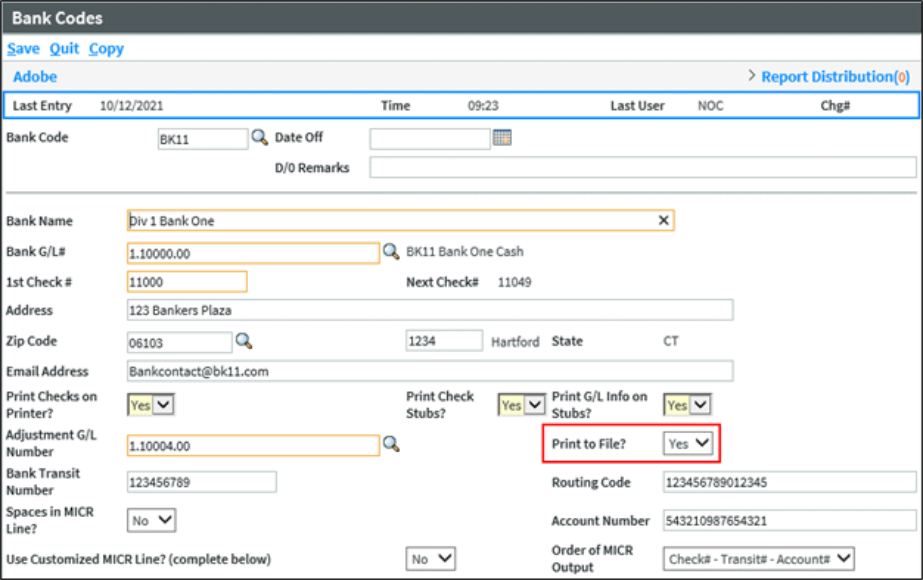
The following bullet points describe the new Print to File? option in Bank Codes
-
Yes: Prompts will not display when issuing a check
-
No: Prompts will display when issuing a check
- Blank (No): Set upon loading the release.
The following print prompts are suppressed in these check programs if the bank has selected Yes in the Print to File? command:
-
A/R Disbursements
-
A/R Disbursements Report/Update
-
CB Insurer Disbursements
-
CB Insurer Disbursements Report/Print
-
Client Cash Receipt/Vendor Check
-
Client Cash Receipt/Vendor Check Report/Update
-
One-Step Direct Bill
-
Vendor Payable Invoice
-
Vendor Payables Payment Process
-
Pay Insurance Invoice
-
Insurance Payment Process
-
Group Print Check Process
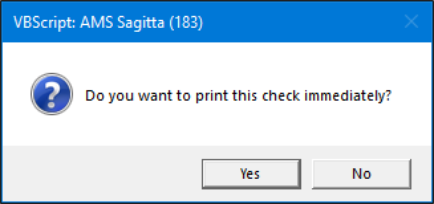
Here are examples of prompts that will be suppressed when Print to File? Is set to Yes:
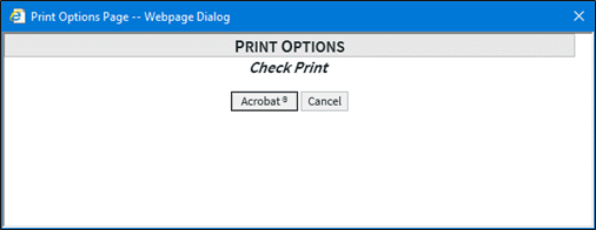
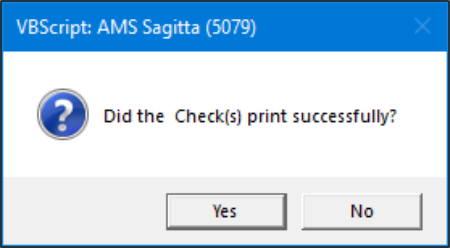
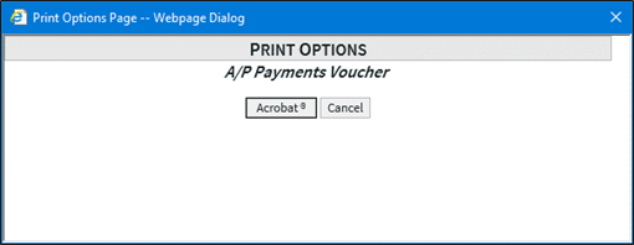
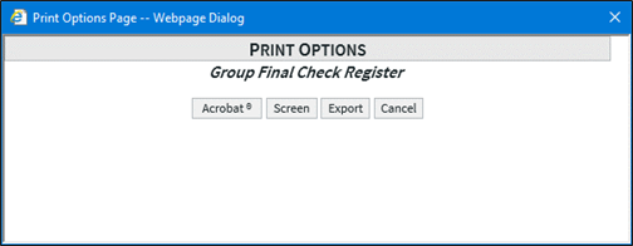
You cannot enter bank codes that do not have the same Print to File flag set in Bank Codes in a multi-line Bank Code textbox. The following programs allow multiple banks and will display the error, "Cannot run report when banks have different Print to File flags!" when selecting Adobe, Print or Export:
-
A/R Disbursements Report/Update
-
CB Insurer Disbursements Report/Print
-
Client Cash Receipt/Vendor Check Report/Update
-
Group Print Check Process
 Run the update programs separately for banks with Print to File set to Yes and Print to File set to No/Null. Run the update programs separately for banks with Print to File set to Yes and Print to File set to No/Null.
|
The same batch programs will display Update Successful at the top of the page to indicate the process has updated the checks without displaying prompts.

Update programs that have a Preliminary/Final Report option on the Parameters page will generate the report for Preliminary, but it will suppress all reports and prompts for Final. The following programs have a Preliminary/Final option:
-
A/R Disbursements Report/Update
-
CB Insurer Disbursements Report/Print
Report Builder Statement for List of Suppressed Checks
The report builder, PTF.CHECKS, has been pre-loaded into Sagitta. Use this report to generate a report in CSV format that lists checks that were generated for a bank that has the Print to File? flag set to Yes. This CSV report can be forwarded to a third party for issuing checks offsite.
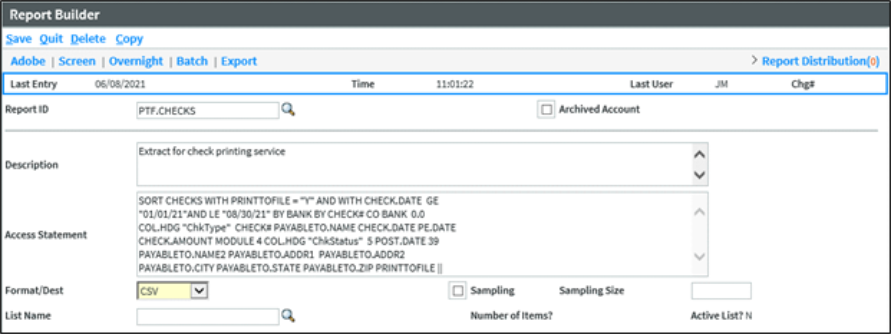
 The dates in the Report Builder statement should be updated by the user running the report to print the latest checks. The dates in the Report Builder statement should be updated by the user running the report to print the latest checks.
|
Report Builder and SQL Dictionaries Added for Check Printing
| Sagitta File | Attribute Dictionaries | Synonym Dictionaries | ODBC SQL Dictionaries |
| Banks | 28 | PRINTTOFILE | PRINTTOFILE |
| Checks | PRINTTOFILE | PRINTTOFILE | |
| Checks | PAYABLETO.NAME | PAYABLETONAME | |
| Checks | 26 | PAYABLETO.NAME2 | PAYABLETONAME2 |
| Checks | 27 | PAYABLETO.ADDR1 | PAYABLETOADDR1 |
| Checks | 28 | PAYABLETO.ADDR2 | PAYABLETOADDR2 |
| Checks | 29 | PAYABLETO.CITY | PAYABLETOCITY |
| Checks | 30 | PAYABLETO.STATE | PAYABLETOSTATE |
| Checks | 31 | PAYABLETO.ZIP | PAYABLETOZIP |
Web Service Tags Added for Check Printing
| Sagitta File | Web Service Tag |
| Banks | PRINTTOFILE |
USER-DEFINED DATA FOR BANKS
You can now add "Additional Information" fields to Bank Codes via User-Defined Data Setup. For more information on User Defined, see Sagitta Online Help, Add User-Defined Fields and Pages to Sagitta.
[Sagitta Online ONLY] Single Sign-On
Single Sign-On (SSO) is now available for Sagitta Online Agencies. For additional information, please refer to the Sagitta Single Sign-On Startup Guide included in this documentation set.
WorkSmart Browser Version 7 (and Higher) Personalization and Button Changes
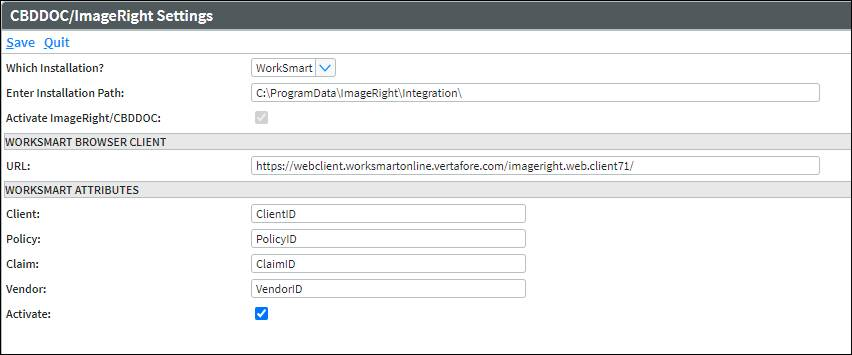
WorkSmart Version 7 (and higher) supports the WorkSmart browser version. Within Sagitta, changes have been made to the personalization page — CBDDOC/ImageRight Settings — to support the new version, which now supports the ability to launch back to Sagitta when in WorkSmart.
NEW FIELDS ON THE CBDDOC/IMAGERIGHT SETTINGS PAGE
The sections WorkSmart Browser Client and WorkSmart Attributes are new to this release. The values in the fields are examples of input. If your agency uses WorkSmart, enter the correct values from WorkSmart for your specific agency.
UPDATED AND NEW WORKSMART BUTTONS
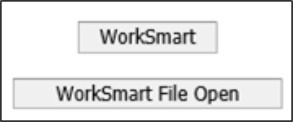
When the Activate field in the WorkSmart Attributes section is checked, the new WorkSmart button for browser is displayed on pages that possess the WorkSmart desktop buttons, WorkSmart File Open, and WorkSmart File Save.
For the following pages — Vendor Codes, Insurance Payment Process, and Vendor Payables Invoice — that formerly displayed only a WorkSmart desktop button titled WorkSmart, that button has been renamed WorkSmart File Open, whereas a new WorkSmart button has been added for WorkSmart Browser.
On the Memos, Clients, Policies, Holders, Submissions, and Claims pages, the top button is for the WorkSmart browser, while the bottom two buttons are for the WorkSmart desktop.

On the Vendors, Insurance Payment Process, and Vendor Payables Invoice pages, the top button is for the WorkSmart browser, whereas the bottom two buttons are for the WorkSmart desktop.
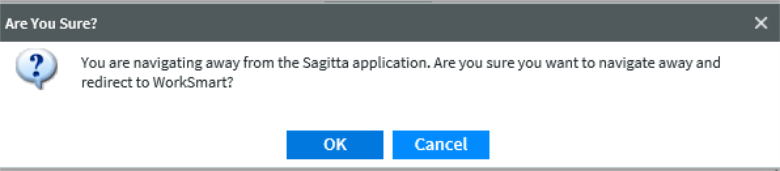
When the new WorkSmart browser button is clicked, an Are You Sure? prompt is displayed, which includes buttons labeled OK (i.e., continue to WorkSmart) and Cancel (i.e., do not continue.)
File Transfer Protocol Changed to SFTP
The file transfer protocol used by Sagitta components has been changed from FTP to SFTP (Secure File Transfer Protocol).
|
For additional steps to take, please refer to the SAG21R1.2.1001 Deployment Database and Application Server Install document included in this documentation set. |

These features now use SFTP instead of FTP:
-
AL3 imports in the Interface page
-
Staff Images and Staff Signature Imports
-
Policies exported to Producer Plus and PL Rating
-
Policies imported through the Policy Match screen, from PL Rating and Producer Plus exports
-
Imported files in the Direct Bill Commission Processing page
-
Policy Multi Bill-To Imports
-
Client and Policy Schedule Imports
-
AM Best Ratings Import
-
User Defined Data Setup imports
-
Certificate Attachments and Letter Templates added or exported in the ASD Personalization page
-
Certificates retrieved via SagittaAPI by InsurLink
-
Imports done in the PLM NPN Import Utility page
-
Reports and other pages that contain a PDF button, such as:
-
Adobe
-
Acrobat
-
Export
-
PDF
-
-
Vertafore eForms
-
Create Forms - Save Form & Close and Print Form & Close
-
Retrieve Forms - View
-
-
Generating PDFs for ACORD 24, ACORD 25, ACORD 27, and ACORD 28 forms
-
Signatures included on Vertafore eForms using new image-based signatures, listed in the Signatures section of this document, found below.
Signatures on Sagitta Forms
The Sagitta Forms listed below now display the same signatures that are available within Vertafore eForms. The Signatures available in Vertafore eForms, which are the signatures personalized in Staff Codes, now support a greater number of file types, including .bmp, .jpeg, .png, .jpg. Existing Signatures (.sig files) for these forms are also available for selection.
-
Property Loss Notice (AF.001)
-
Automobile Loss Notice (AF.002)
-
General Liability Loss Notice (AF.003)
-
Certificates of Property (AF.024)
-
Certificates of Liability Insurance (AF.025)
-
Evidence of Property (AF.027)
-
Evidence of Commercial Property (AF.028)
-
Binders (AF.075)
|
If the old and new signature names are different, but the signature is selected by entering the Staff code in the Signature field and not by using the Signatures Lookup, the new signature will be printed on the form. New signatures are only available for the two most recent versions of the form, e.g., for the ACORD 25, the (03/16) and (01/14) versions. |

The new signatures will also display in Certificates printed through InsurLink.
Client Code Security
Client Code Security allows you to make a Sagitta client accessible only to a specific staff code or codes. If a staff code that is not personalized to access the client searches for the client by code or name, the responses will show as Item Not Found or Invalid Entry.
Client Code Security can be used in conjunction with Client Level Security (Staff Security), and Staff Departmental Security. (See more below in reference to Staff Departmental Security.) When all three are in use, Client Code Security takes precedence over the other two products. This means, where a staff code is excluded from accessing a client based on their Staff Security or Staff Departmental Security settings, a user will be able to access the client if that client has been personalized in Client Code Security Maintenance, and where a staff code has been added to the grid.
SAGITTA PAGES WITH CLIENT-CODE OR BILL-TO-CODE FIELDS THAT ARE CONTROLLED BY CLIENT CODE SECURITY
-
Client Search
-
Adding a new client: If a restricted client code is entered, the response is Duplicate Code – Append?
-
My Recent Clients
-
Clients:
-
Client Code
-
Bill To Code
-
Reference Code
-
Copy/Merge page
-
Client Relationships grid
-
Client Multi
-
-
Activities grid on the Home page
-
Activity Log
-
Policy Details:
-
Client Code
-
Bill To Code
-
-
Policy Multi
-
Invoice Wizard, including Multi, Finance, Invoice, and Installments tabs
-
Mailbox: Potential matches and Add a policy in the Manual Match page
-
Blind Import: Policy match page that displays when exporting from products such as PLRating and ProducerPlus to Sagitta.
-
Accounting pages:
-
View Client Receivables Ledger icon
-
Cash Receipts
-
Client Cash Receipts/Vendor Check
-
Post-Invoicing Finance Process
-
One-Step Direct Bill
-
AR Disbursements
-
AR Advisements
-
Client Receivable Balance Entry
-
Insurer Receivables Balance Entry
-
Insurer Receivables Ledger
-
Client Multi Invoice Print
-
Direct-bill commission processing policy match
-
 Reports with a Client Code field as part of the criteria are not controlled by Client Code Security. Users can limit access to these reports by employing Role-Based Security. Reports with a Client Code field as part of the criteria are not controlled by Client Code Security. Users can limit access to these reports by employing Role-Based Security.
|
CLIENT CODE SECURITY MAINTENANCE
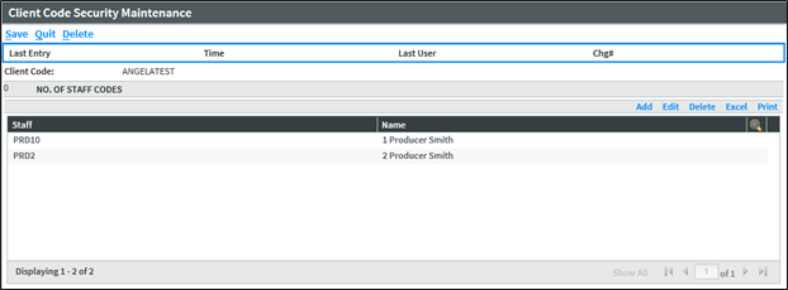
Add Client-to-Client Code Security Maintenance
-
Client Code: Enter, or search-and-select, the client code to be personalized
-
Click Add in the Staff Codes grid; a new line is then displayed
-
Staff: Enter, or search-and-select, the staff code that will be able to access the client
-
Click Save in the grid when done, or click Save&Add to add more staff codes to the grid
-
Click Save when done.
Remove a Client from Client Code Security Maintenance
-
Enter the client code in the Client Code field, and then tab out
-
Click Delete
-
The prompt, Are you sure you want to delete this record? will be displayed, showing buttons labeled Yes and No
-
Click Yes. The client will then be removed from Client Code Security Maintenance
 Any restricted Client Codes previously set up as Bill-To Codes in the database will continue to be accessible until they are changed. You should locate any Client records with Bill-To Codes that need to be restricted and then change the Bill-To Codes manually to prevent access via the Bill-To link. Any restricted Client Codes previously set up as Bill-To Codes in the database will continue to be accessible until they are changed. You should locate any Client records with Bill-To Codes that need to be restricted and then change the Bill-To Codes manually to prevent access via the Bill-To link.
|
Add the Client Code Security Maintenance Page to a Role within Role-Based Security
Add Client Code Security Maintenance within Role-Based Security with the program name CLI.CODE.SECURITY. When this menu is added via Quick Entry, it is added to the Other > System > Personalization menu.
REPORT BUILDER FOR CLIENT CODE SECURITY
To obtain a list of the client codes personalized on the Client Code Security Maintenance page, add the statement below in Report Builder:
LIST CLI.CODE.SECURITY 0 CLIENT.ID 2 CLIENT.CODE 3
STAFF.CODES
If Your Agency Formerly Used the Customized Version of Client Code Security
Client Code Security was originally released as part of these Custom releases:
-
758047
-
768024
These releases are now part of this Sagitta Core release. If your agency previously used the Custom Client Code Security Maintenance page, Vertafore recommends that you use the new Client Code Security Maintenance page, which has been added in this release. The button Remove Security Restrictions in the Custom version has been replaced by the Delete button in this new version.
To make this change:
-
Add the new page, CLI.CODE.SECURITY in Role Based Security (as shown above) to a role that currently has the existing page, CUSTOM.CLI.CODE.SECURITY. This should be the Role to which your staff is currently assigned.
-
Open two Sagitta pages. In the first Sagitta page, open the Custom Client Code Security Maintenance page and access each Client that has specific security settings. In the second Sagitta page, open the new Client Code Security Maintenance page. Add the Staff Codes that have access to each client in the new page.
-
Remove the CUSTOM.CLI.CODE.SECURITY page and replace it with the CLI.CODE.SECURITY page in Role Based Security, for each role that has the existing CUSTOM.CLI.CODE.SECURITY page.
SAGITTA DICTIONARIES ADDED FOR CLIENT CODE SECURITY
| Sagitta File | Attribute Dictionaries | Synonym Dictionaries |
| CLI.CODE.SECURITY | 0 | CLIENT.ID |
| 2 | CLIENT.CODE | |
| 3 | STAFF.CODES |
| File | Dictionaries |
| CLI.CODE.SECURITY | CLI_CODE_SECURITY_ID |
| CLIENTID | |
| CLIENTCODE | |
| CLI_CODE_SECURITY_STAFFCODES | CLI_CODE_SECURITY_ID |
| CLIENTID | |
| STAFFCODES |
Staff Security Department
Staff Security Department allows you to set access to clients in Sagitta based on department. It is now possible to personalize users for access to the division(s) and department(s) where they need access.
When a personalized user tries to access a client, the system checks the division and department of the Primary Servicer (the servicer in the top Servicer field on the client).
-
If the Staff Security Department personalization for the user trying to access the client contains the division and department of the Primary Servicer, the user will be granted access to the client.
-
If personalization does not include the division and thr department of the Primary Servicer, the messages being returned — depending upon where the access is attempted — are No Items Found, Client Not Found, or Your Security Record is Not Set Up.
-
If the Staff Security Department is not personalized for a staff user, that user will allow access to all departments.
-
When the Allow Change of Policy Division flag, contained within Staff Security and System Personalization pages is set to:
-
Blank or No, the Department field on the Policy Details page is restricted. When the Department field is searched, only the departments that the user has access to display. When a department that the user does not have access to is entered manually in the field, the error message Department Not Found or Inaccessible is displayed.
-
Yes, when the Department field is searched on the Policy Details page, all departments will be displayed.
-
-
Staff Security Department requires Client Level Security (Staff Security) to be active on Sagitta.
-
If a user is personalized in Staff Security for access to all divisions and departments, Staff Security Department does not control access to a client.
-
If a user is not personalized in Staff Security Department, the user has access to all departments for all the divisions they are authorized for within Staff Security.
Staff Security Department works together with Client Code Security and Client Level Security (Staff Security). When all three products are in play, Client Code Security takes precedence; in other words, if a user is set in Client Code Security for access to a client, that user will be able to access the client, regardless of the settings for the other two products.
SAGITTA PAGES WITH CLIENT CODE OR BILL-TO-CODE FIELDS THAT ARE CONTROLLED BY STAFF SECURITY DEPARTMENT
-
Client level:
-
Advanced Client Search
-
Searching for anything related to the client, i.e., Policy No., Invoice No., Client Seq No.
-
Client Relationships grids
-
Copy/Merge
-
Client Multi
-
-
Policy Level:
-
Policy Details
-
Copy-Merge
-
Policy Multi
-
Invoice Wizard, including Finance, Installments, and Invoice tabs
-
-
Activities on Home Page
-
Activity Log
-
Company Mailbox, including the Potential Matches and Add-a-Policy sections of the Manual Match page
-
Policy match page that displays when exporting from PLRating and ProducerPlus Match
-
Accounting programs where user enters a client code on the page
-
Cash Receipts
-
Client Cash Receipts/Vendor Check
-
Direct Bill Commission Processing policy match page
-
Post Invoicing Finance Process
-
One-Step Direct Bill
-
AR Disbursements
-
AR Adjustments
-
Client Receivable Balance Entry
-
Insurer Receivables Balance Entry
-
Insurer Receivables Ledger
-
Client Multi-Invoice Print
 The following are NOT controlled by Staff Security Department: The following are NOT controlled by Staff Security Department: |
-
Pages with a search for General Ledger accounts (accounts for all departments will display)
-
Pages and products that are not controlled by Staff Security: Role-Based Security Report, Staff Code Global Changes, and Policy Batch Export, and SOAP services
-
Data will not be restricted if reports are run where the client code or department field are left blank
-
Accounting programs will restrict the division number when loading a record, but they will access all accounting data regardless of department
-
Invoicing will not restrict the department (there are no restrictions in policy level)
-
Reports where user enters a client code in a client code text box
-
Department fields on all pages are not restricted, except for policy details
-
Policy look-ups and policy wheel items are not restricted (since client-level security does not restrict access to policies and items linked to policies such as certificates, proposals, etc.)
STAFF SECURITY DEPARTMENT PERSONALIZATION
Add a User to Staff Security Department
-
Staff Code: Enter, or search-and-select, the staff code to be personalized
-
The division and department of the staff code will pre-fill as the first line
-
In the Division/Department grid, add the divisions and departments this staff code is permitted to access
-
Click Save when done
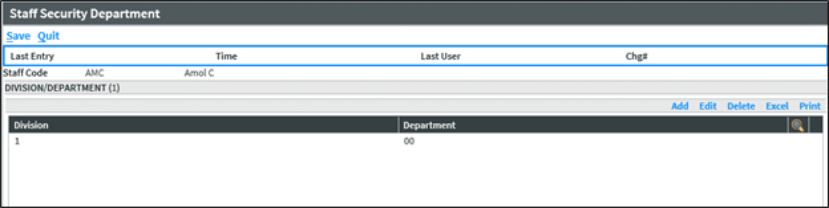
When a staff code is entered, the division and department that is personalized for that staff code in the Staff Codes page loads in the Division/Department grid.
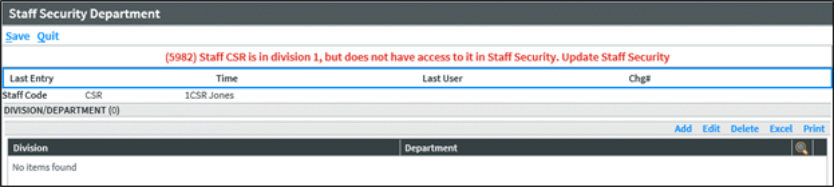
The user must be personalized for the division in Staff Security before any departments are personalized for that division for the user in Staff Security Department.
Add the Staff Security Department page to a role in Role-Based Security
Add Staff Security Department in Role-Based Security with the program name STAFF.SECURITY.DEPT. When this page is added via Quick Entry, it is added to the Other > System > Personalization menu.
REPORT BUILDER AND SQL DICTIONARIES ADDED FOR STAFF SECURITY DEPARTMENT
| Sagitta File | Attribute Dictionaries | Synonym Dictionaries | ODBC SQL Dictionaries |
| STAFF.SECURITY.DEPT | 0 | STAFF.CODE | STAFFCODE |
| 0.3 | NAME | STAFFNAME | |
| 2 | DIVISION | DIVISION | |
| 3 | DEPARTMENT | DEPARTMENT |
New Additions to the Vertafore ACORD Forms Library
The table below lists the new form now available through the Create Forms page.
| ACORD Form | State | Version | Form Name |
| 125 | FL | 2016/03 | Florida Commercial Insurance Application |
New Process Vertafore eForms Display at the Top of the Form Set
The 127 (2016/03), and the most recent versions of the 125 and 125 FL (2016/03) are created using a new process; these will display at the top of the Forms list. When any of these forms are selected, along with other forms that were previously added, they will be listed with 125 forms first, followed by the 127 form, followed by the rest of the forms in numerical order. These forms may process more quickly than the other forms.
Fixes
| Area |
DEFECT ID |
Release Notes |
|---|---|---|
|
Accounting |
DS377 |
Invoices created by One Step Direct Bill Disbursements will now respect the Accounting Flags page Company Bill Invoice Servicer Prefill flag and display the correct servicer. |
| Integration |
DS3495 |
The Description of Operations from Master Certificates will now be displayed in InsurLink. |
|
Integration |
DS3541 |
It is again possible to delete fifteen or more transactions in the Company Mailbox at a single time. |
|
Integration |
DS4004 |
A memo description is now properly sent from Sagitta to CBD Docs. |
|
Other |
DS3875 |
Any Attachments and Dunning Letter Templates added once the ASD Migration has taken place will not overlay existing attachments and letter templates. |
|
Other |
DS4030 |
Any Attachments or Dunning Letter Templates that have a "#" in their name can be added in the ASD Personalization page, and they can be printed. |
|
Vertafore eForms |
DS3216 |
The ACORD 139 Statement of Values form can now be created without error KVP_001 occurring, in situations where the policy has Commercial Property coverages attached. |
|
Vertafore eForms |
DS3697 |
A KVP error no longer occurs when creating the ACORD 125 or 125 FL 2016/03 forms, in situations where the policy contains an insurer's name that includes a special character — e.g., an ampersand (&) — in Prior History. |
| Vertafore eForms | DS3703 | An error no longer occurs when creating ACORD 125 or 125 FL (2016/03) forms, in situations where additional interests on the policy contain special characters, e.g., an ampersand (&). |
Questions
If you encounter problems or have questions concerning this release, Vertafore offers the following helpful resources:
- Search the Knowledge Base on MyVertafore.
- Create a case at MyVertafore.