RiskMatch Release Notes Archive
 March 2022
Retention Prediction Drivers Feedback
The Retention Prediction feature has been enhanced to allow users to review Retention Drivers at the policy level, determine their accuracy and/or effectiveness, and then quickly provide Yes/No feedback to the RiskMatch team within the product. This feedback will continually improve the predictive model and generate the most relevant insights on at-risk policies prior to their renewal. Click Retention Prediction to learn more.
Analytics in Your Inbox: Retention Prediction Informed Renewals Template
Agencies can now deliver actionable insight related to at-risk policies to their producer’s inbox via the most current automated email template. Choose to set up emails specifically focused on Retention Prediction Informed Renewals, or add Retention Prediction Informed Renewals to previously set automated emails, as needed. Click Analytics in your Inbox to learn more.
November 2021
Benefits Benchmarking Enhancements
Within the Cumulative Benchmarking reporting view of Benefits Benchmarking, users can now benchmark against existing clients in addition to a plan type. Click here to learn more about benchmarking against existing clients.
October 2021
Logic Change

|
Note: This change only applies to AMS360 agents and brokers. |
On October 15, RiskMatch logic will be updated to automatically update the RiskMatch policy end date to the cancellation date when a policy is canceled in AMS360. This is a logic change that will affect current and historical records.
Previously, if a policy was cancelled in AMS360, agents and brokers had to manually update the RiskMatch policy expiration date to the cancellation date. If the field was not manually updated, the RiskMatch policy expiration date remained the original date.
This change impacts:
-
Revenue Drivers - retained value may go down
-
The following reports:
-
Revenue drivers
-
Policy details
-
Written In force value on dashboard
-
Exported Excel reports
-
March 2021
Cross-Sell Multiple Clients
RiskMatch now supports multiple clients being generated on the Cross Sell report.
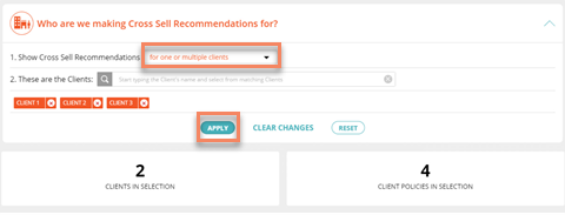
- Begin by selecting for one or multiple clients from the Show Cross Sell Recommendations drop-down. Then start to type a client’s name in the search bar to initiate the drop-down and select the required clients.
- Click the check-box next to a client’s name to add them to the list.
- Selected clients are listed below the search bar. Simply click the x next to a selected client’s name to remove them from the list.
- Finally, Click Apply and then click on Generate Cross Sell Report.
Cross Sell
Note: The number of Clients in Selection may be different than the number of clients chosen from the drop-down. Clients in Selection shows the total number of clients who have at least one active product. Cross Sell recommendations won’t be shown in the report for clients who do not have at least one active product.
February 2021
Policy/Client Details CSV Export
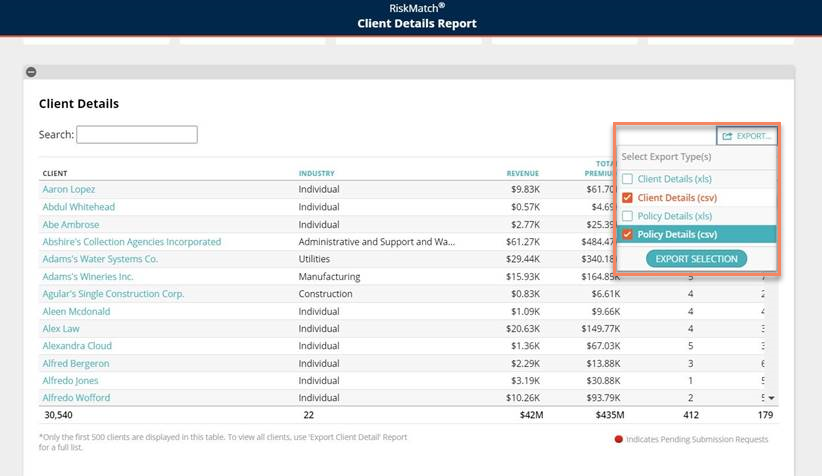
You now have the option of downloading the Policy and Client Details Reports as either an .xls or .csv file. The Client and Policy Details buttons have been consolidated into a single export button. Hover over the export button to view the drop-down options.
Program Structure: Package Policies
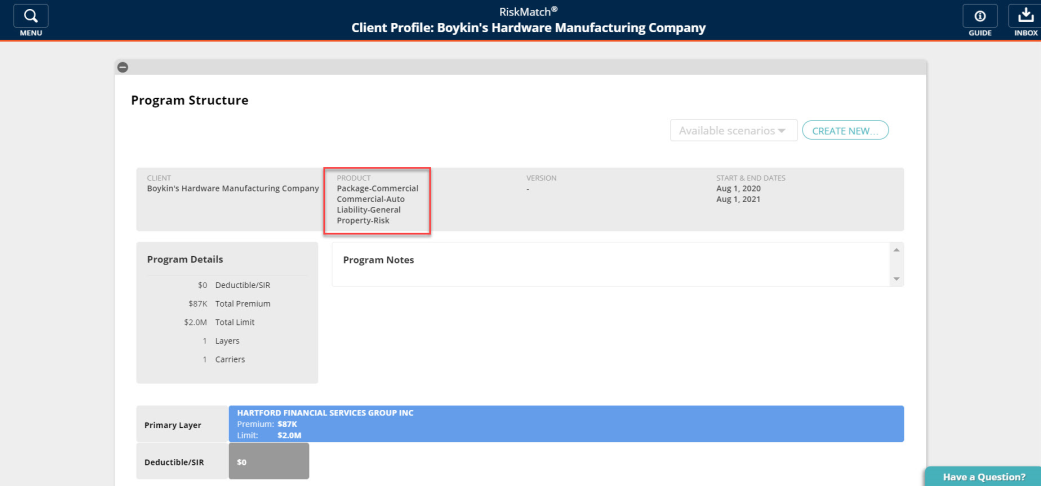
Individual products within a package policy are now featured in the Program Structure of the Client Profile. The type of package policy will always be shown first in the list with additional products shown below.
|
|
Note: Products will only appear if they have been entered as separate lines of business in the AMS. |
Package Policy Tooltip
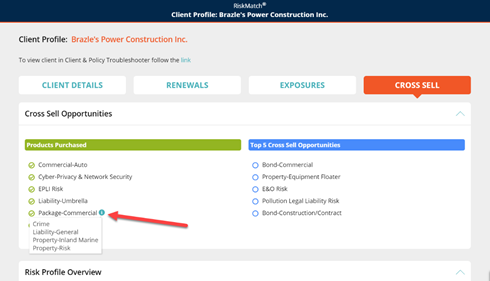
A tooltip has been added next to package policies within the Cross Sell tab of the Client Profile. Hover over the i icon shown next to package policies to view the list of individual lines of business included in the package.
|
|
Note: Products will only appear if they have been entered as separate lines of business in the AMS. |
January 2021
Policy Details Report
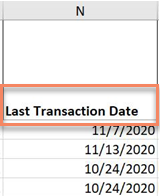
- A new column has been added to the Policy Details Report for Last Transaction Date. Column N in the report now shows the last date that a policy was billed.
Policy Details Report
November 2020
Potential Enhanced Revenue Report (PER)
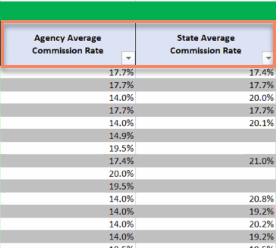
- New columns have been added to the PER Report showing the state average commission and the agency average commission for the corresponding policy's industry and product combination.
|
|
Note: The state average commission will not be shown if there are fewer than 2 policies across RiskMatch matching the corresponding policy's industry, product and state combination. |
PER Report
Total Premium by Business Unit Report
- This is a new standard report that provides revenue, premium, commission and fee information for each selected business unit for the selected time period and the same period 12-months prior.
Carrier by Office Report
- This is a new standard report that provides revenue, premium and commission information for each A.M. Best carrier per business unit.